Overview
The Library is your community's shared knowledge base. It brings important information and insights together in one place, making it easier to search, explore, and learn from your community's knowledge. The Library can turn meaningful conversations from connected Slack channels and WhatsApp groups into organized articles, while also allowing members to create and share posts directly. You can search, explore, and learn from shared knowledge, use Kai to help create and understand content, and engage with other members through comments and discussions.
Access the Community Library
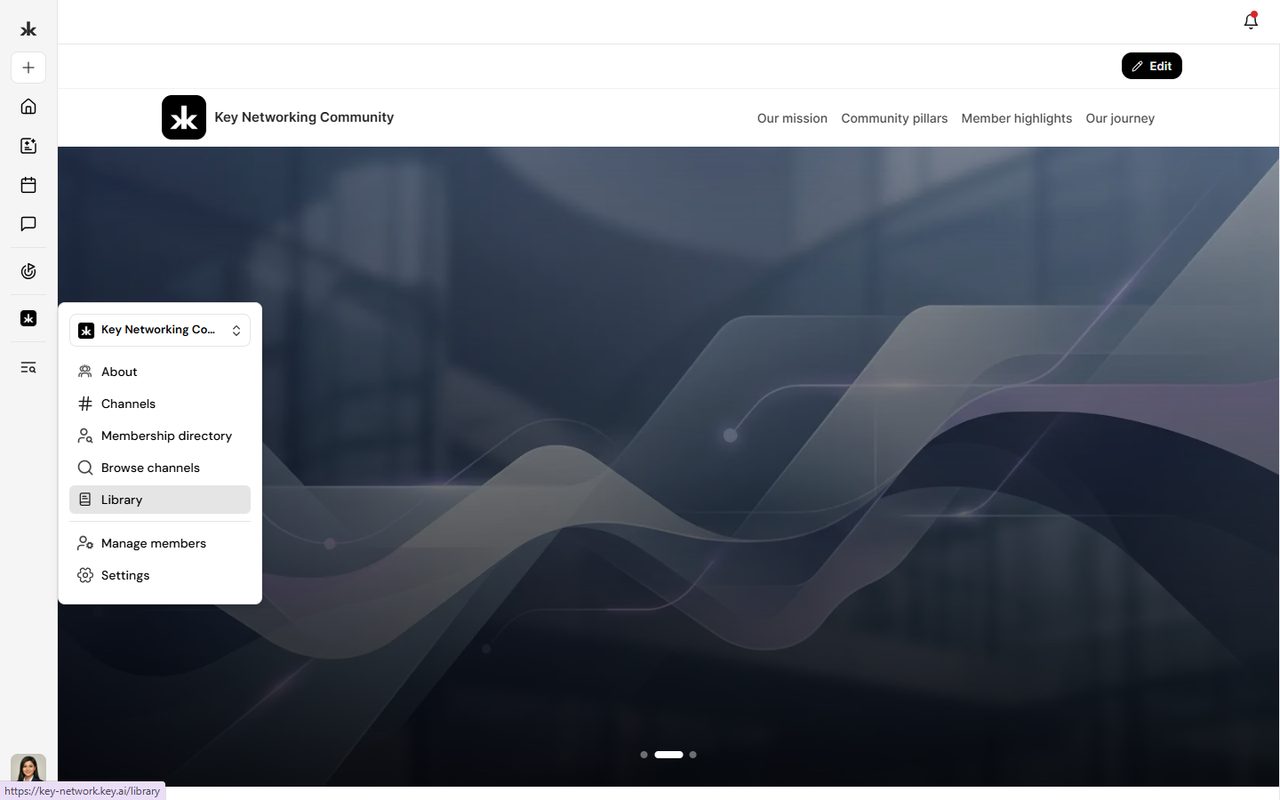
To access the Community Library:
- Open the community you want to explore.
- Select Library from the community navigation menu.
The Library opens to the Feed, where you can browse posts, search for content, filter posts by category, and switch between List and Grid views.
Create a Library Post
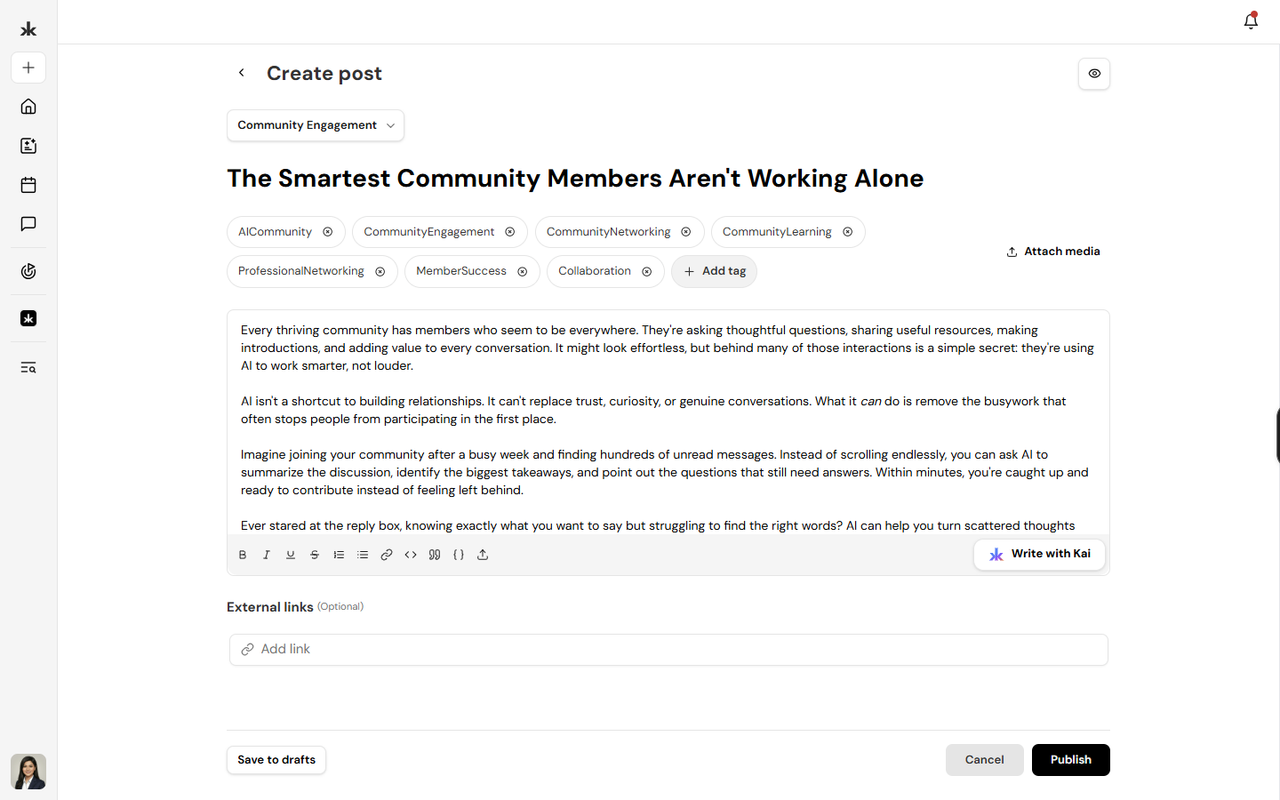
To create a post in the Community Library:
- Open the community where you want to create the post.
- Select Library from the community navigation menu.
- Select Create.
- Add a Headline and select a Category.
- Add content in the Body field, or select Write with Kai to create a draft with Kai.
- Add optional Tags, Media, or External links.
- Select Publish to publish the post.
If your community requires approval for Library posts, select Send for approval instead. The post will be sent to admins for review before it appears in the Library Feed. You can also select Save to drafts to continue working on the post later.
Rich Content Editor
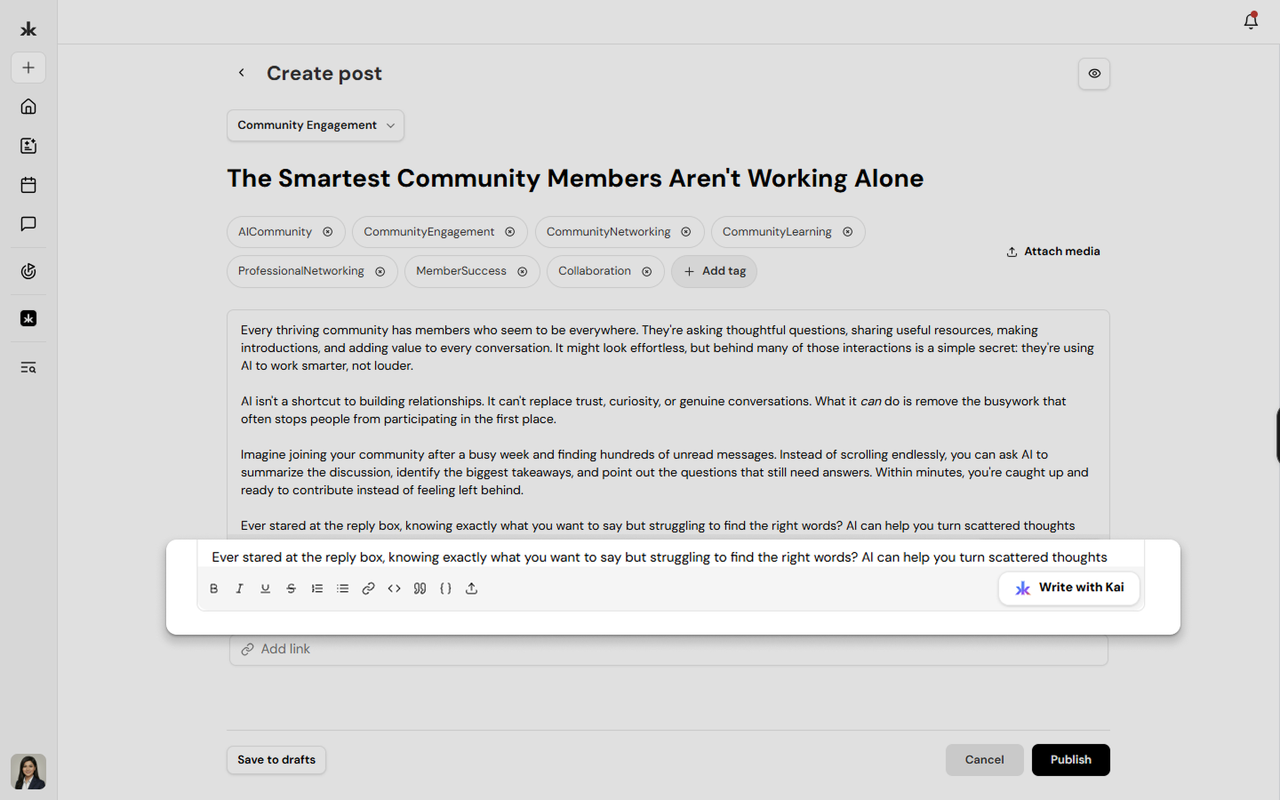
The Rich Content Editor allows you to format the content of your Library posts.
You can use the editor to:
- Add and format text.
- Add headings and lists.
- Add links.
- Add images and other media.
You can also use Write with Kai to generate a draft from a prompt and then edit the content before publishing.
Browse Library Content
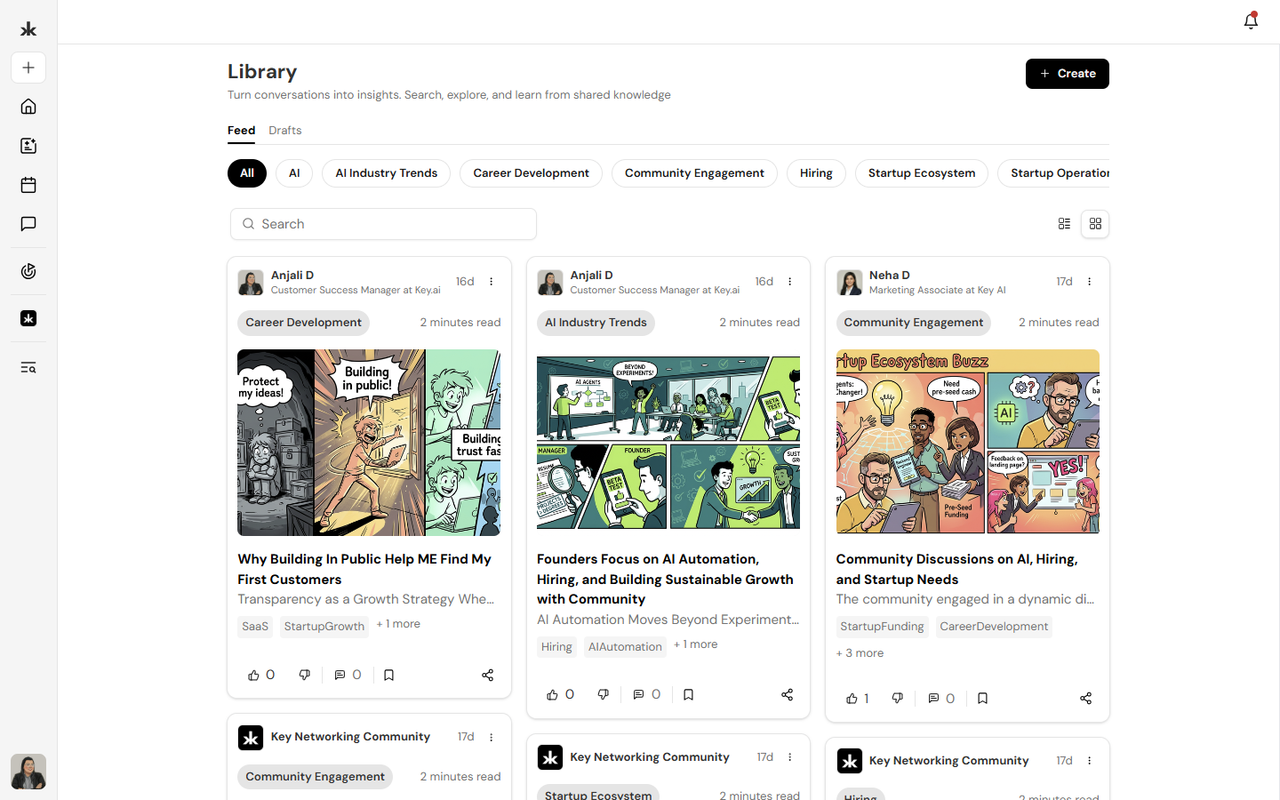
The Library Feed displays posts shared within your community. You can browse posts, search for content, and filter posts by category.
You can also switch between:
- List view - view posts in a list.
- Grid view - view posts in a grid layout.
Each post card can display the author or community, category, estimated reading time, tags, and available quick actions.
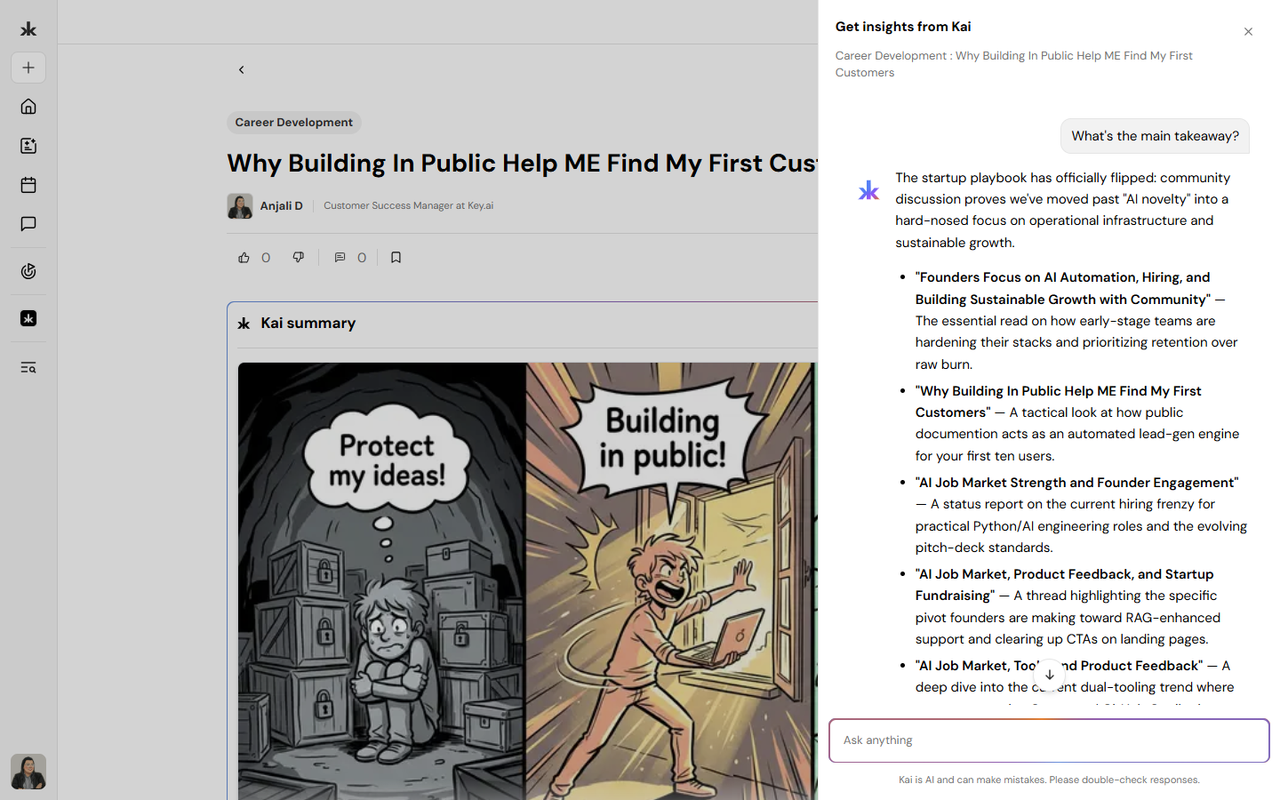
Ask Kai About a Library Article
You can use Ask Kai to ask questions about a Library post and get help understanding its content.
To ask Kai about a Library post:
- Open the Library post you want to explore.
- Select Ask Kai.
- Enter your question or select a suggested prompt.
You can ask Kai to summarize the key takeaways, clarify information, or help you understand different perspectives shared in the post.
For example, you can ask Kai to:
- Summarize the article.
- Explain a specific section.
- Find key information.
- Clarify a concept discussed in the article.
- Answer questions based on the article's content.
Manage Library Content
Community Admins, moderators, and users with the appropriate permissions can manage Library content.
Depending on their permissions, they can:
- Review posts submitted for approval.
- Approve or reject submitted posts.
- Provide a reason when rejecting a post.
- Remove posts from the community.
- Manage Library categories and settings.
Library settings can also be used to control who can contribute, whether posts require approval, notifications, and available Kai options.
Best Practices
- Use clear and descriptive headlines.
- Select the most relevant category for each post.
- Add relevant tags to make content easier to discover.
- Keep information accurate and up to date.
- Use headings and formatting to improve readability.
- Add images and external links where they provide useful context.
- Use Write with Kai to help create drafts, then review and edit the content before publishing.
Frequently Asked Questions
Who can create Library posts?
Members can create Library posts if their community permissions allow them to contribute content.
Who can view Library content?
Members can view Library content based on the visibility and permissions configured for the community.
Can Library posts be edited after publishing?
Post editing depends on the permissions available to the user and the community's Library settings.
Can I remove a Library post?
Admins and moderators with the appropriate permissions can remove posts from the community.
Can I use Kai to create Library content?
Yes. You can use Write with Kai to create a draft from a prompt and edit it before publishing. You can also use Ask Kai to ask questions about a Library post.
- Manage Library