Overview
The Connectors page allows Community Admins to connect third-party applications with their community. Connectors extend your community's capabilities by integrating external communication and collaboration platforms, helping streamline workflows and improve member engagement. Available connectors may expand as new integrations are introduced.
Access Connectors
The Connectors page is available only to Community Admins.
To access Connectors:
- Open the community you want to manage.
- Click Settings.
- Select Connectors.
If you don't see this option, your current role doesn't include permission to manage community connectors.
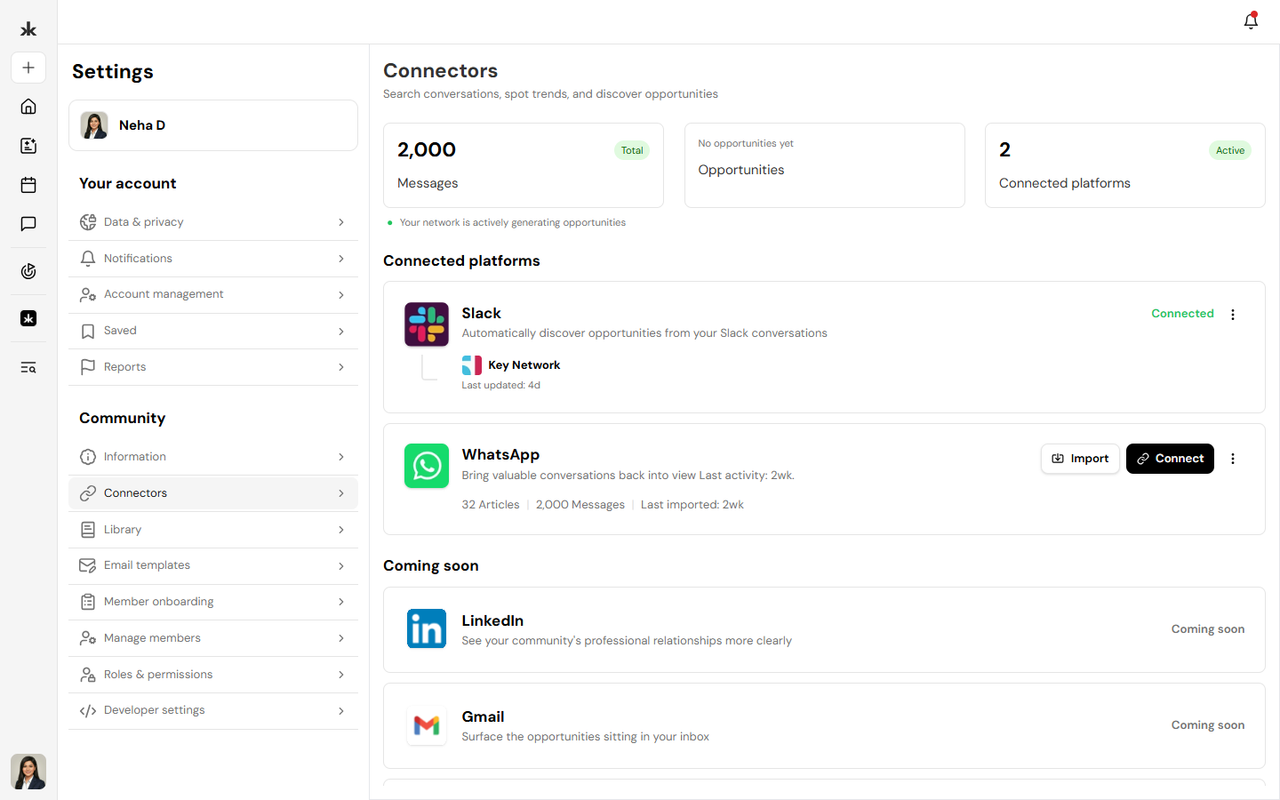
The Connectors page displays the integrations currently available for your community.
At present, the following connectors are available:
- Slack - Connect your community with Slack to enable supported communication and collaboration workflows.
- WhatsApp - Connect WhatsApp to support community messaging and communication features.
Additional integrations are planned for future releases and may appear as Coming Soon within the Connectors page.
Connect an Integration
To connect a supported service:
- Open Community Settings.
- Select Connectors.
- Choose the integration you want to connect.
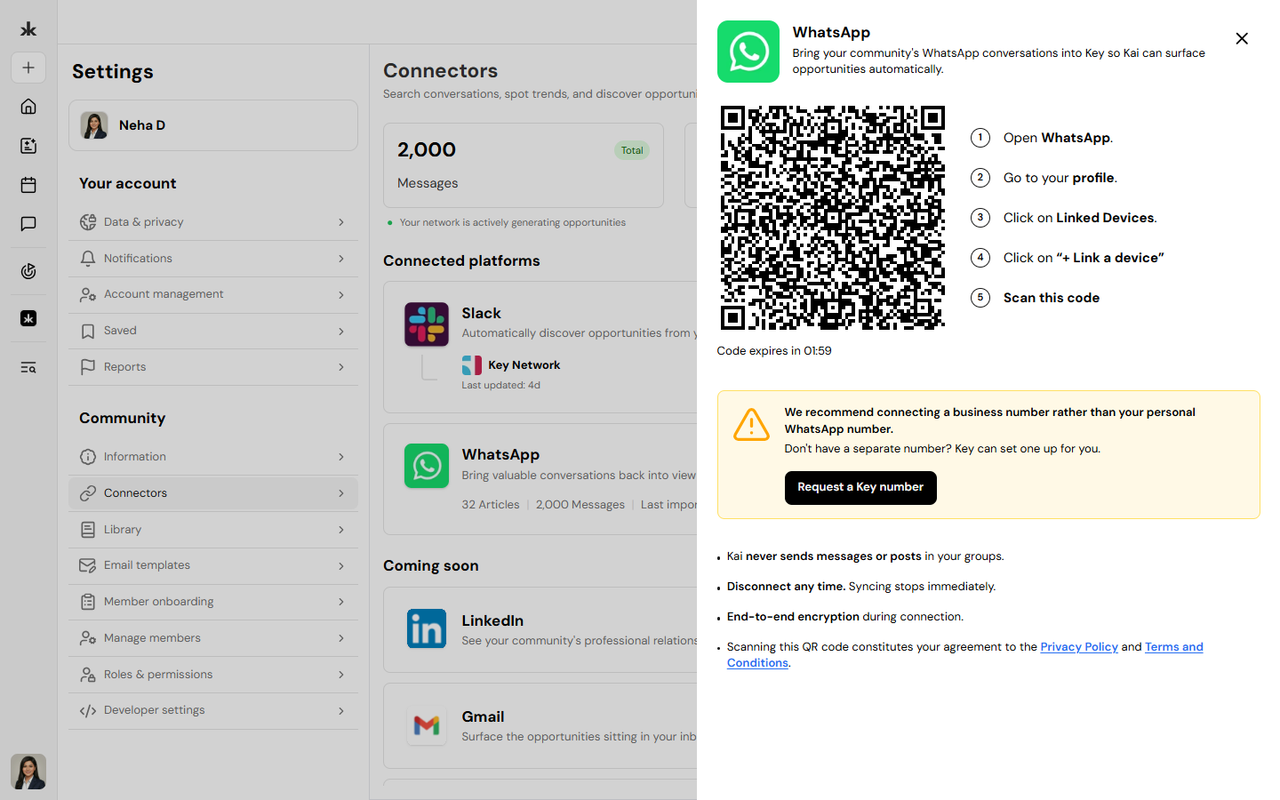
- Click Connect.
- Follow the authentication and authorization steps.
- Confirm the connection.
Once connected, the integration will be available for supported community features.
Disconnect an Integration
If an integration is no longer required:
- Open the Connectors page.
- Select the connected integration.
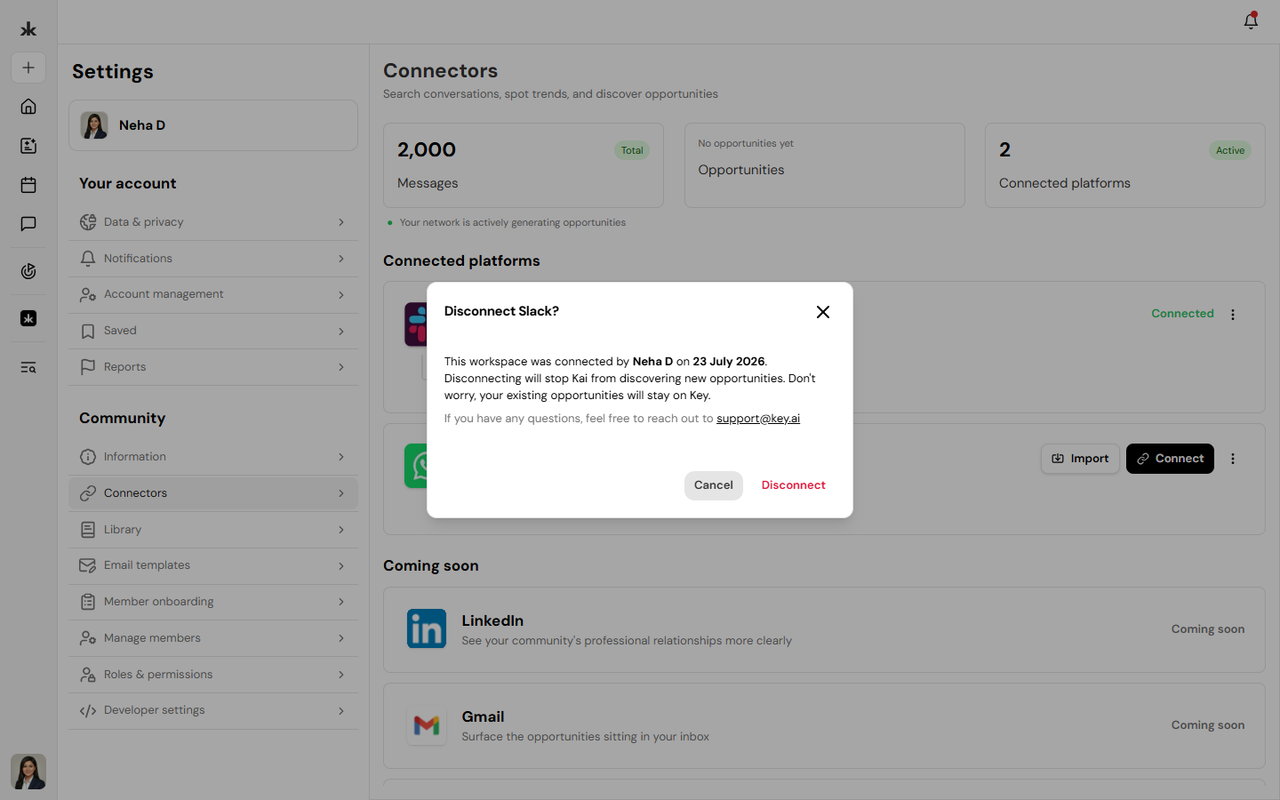
- Click Disconnect.
- Confirm your action.
Disconnecting an integration may disable features that rely on that service until it is reconnected.
Best Practices
- Connect only the integrations your community requires.
- Review connected services periodically.
- Disconnect integrations that are no longer in use.
- Ensure the appropriate permissions are granted when authorizing third-party applications.
- Reconnect integrations if authorization expires.
Frequently Asked Questions
Who can manage connectors?
Only Community Admins can access and manage connectors.
Which connectors are currently available?
Currently, Slack and WhatsApp are available for community integration. Additional connectors will be introduced in future releases.
What happens if I disconnect an integration?
Features that rely on the disconnected service may no longer function until the integration is reconnected.
Do all members have access to connectors?
No. The Connectors page is available only to Community Admins.