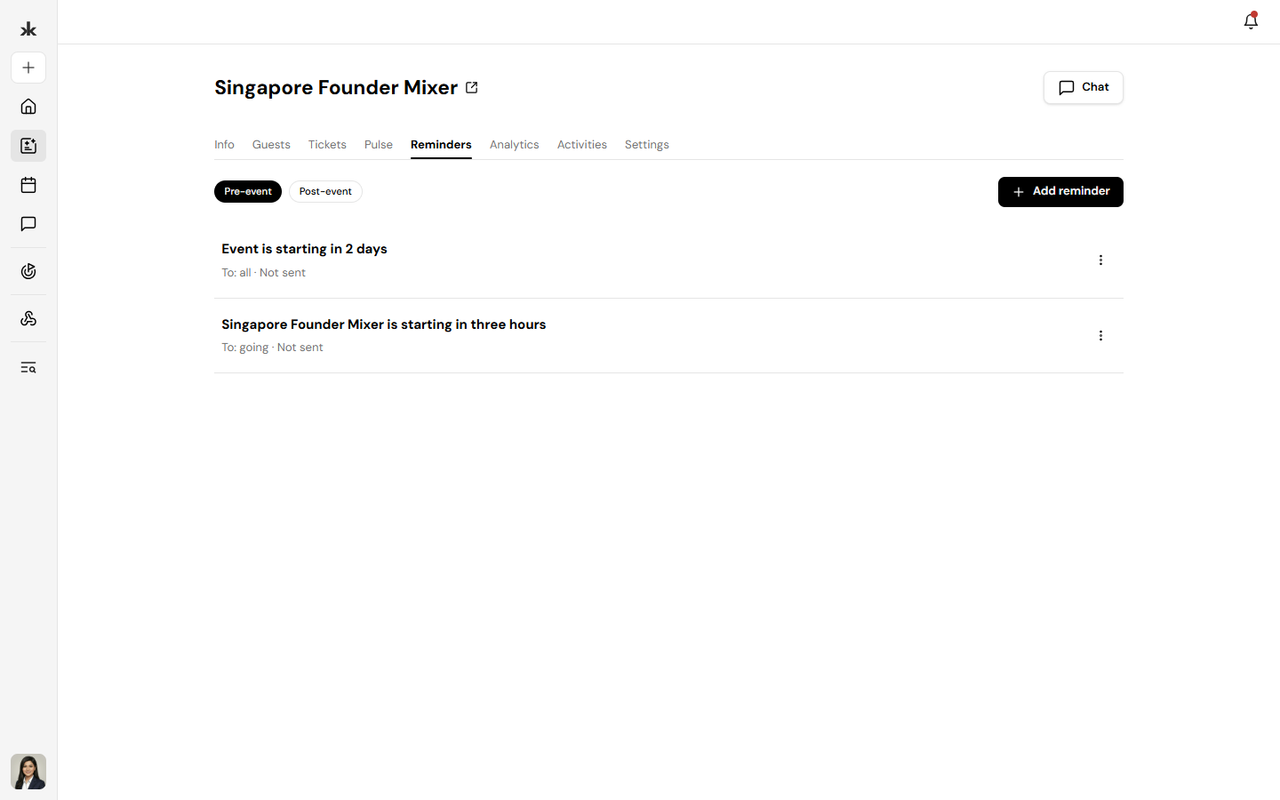
The Reminders tab allows event organizers to send scheduled messages to event participants before or after an event. Reminders can help keep attendees informed about upcoming events and provide follow-up communication after an event.
To access Reminders:
- Open the event.
- Select the Reminders tab.
Reminder Types
Reminders are organized into two categories:
- Pre-event - Send reminders before the event starts.
- Post-event - Send follow-up reminders after the event.
By default, two pre-event reminders are available:
- 1 day before the event - Sent one day before the event starts.
- 3 hours before the event - Sent three hours before the event starts.
You can also add additional reminders using Add reminder. The Reminders section includes separate tabs for Pre-event and Post-event reminders.
Create a Reminder
To create a reminder:
- Open the event.
- Select Reminders.
- Choose Pre-event or Post-event.
- Click Add reminder.
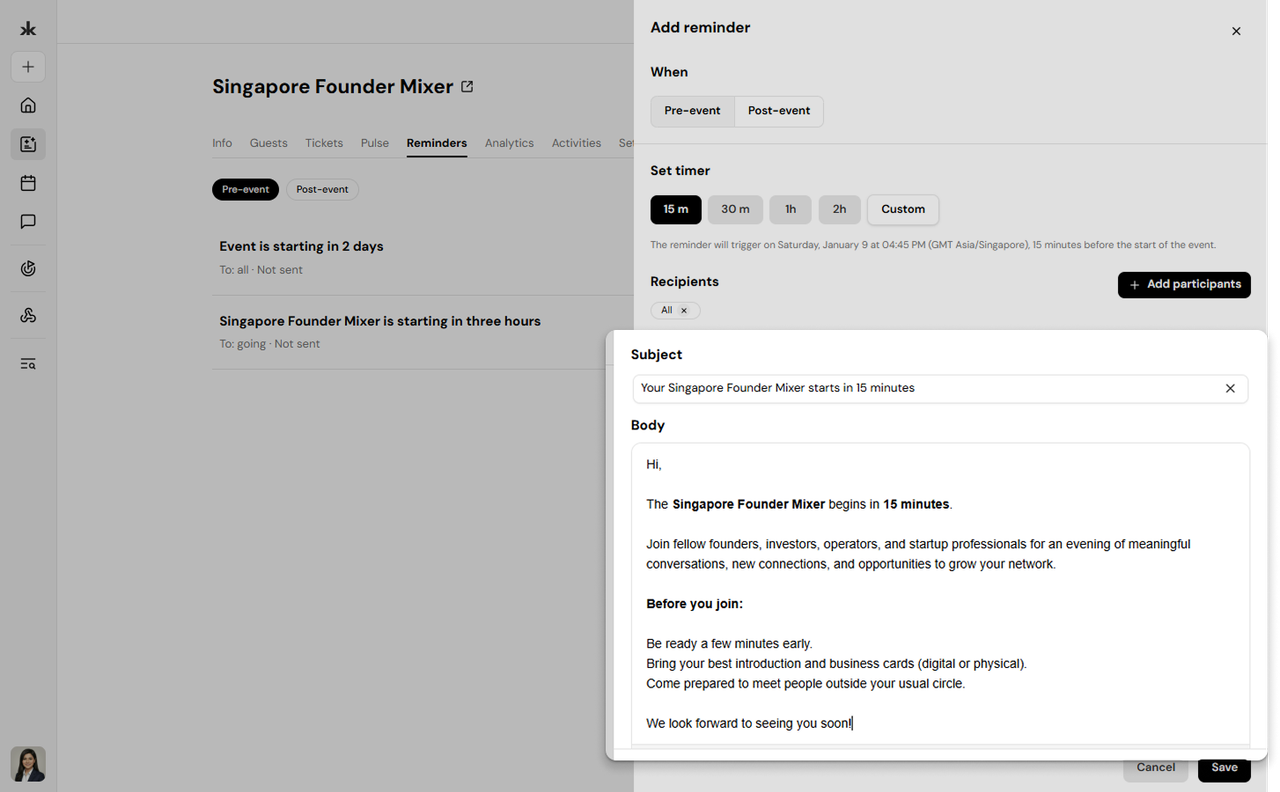
- Select when the reminder should be sent.
- Select the recipients.
- Add a subject.
- Write the reminder message.
- Save the reminder.
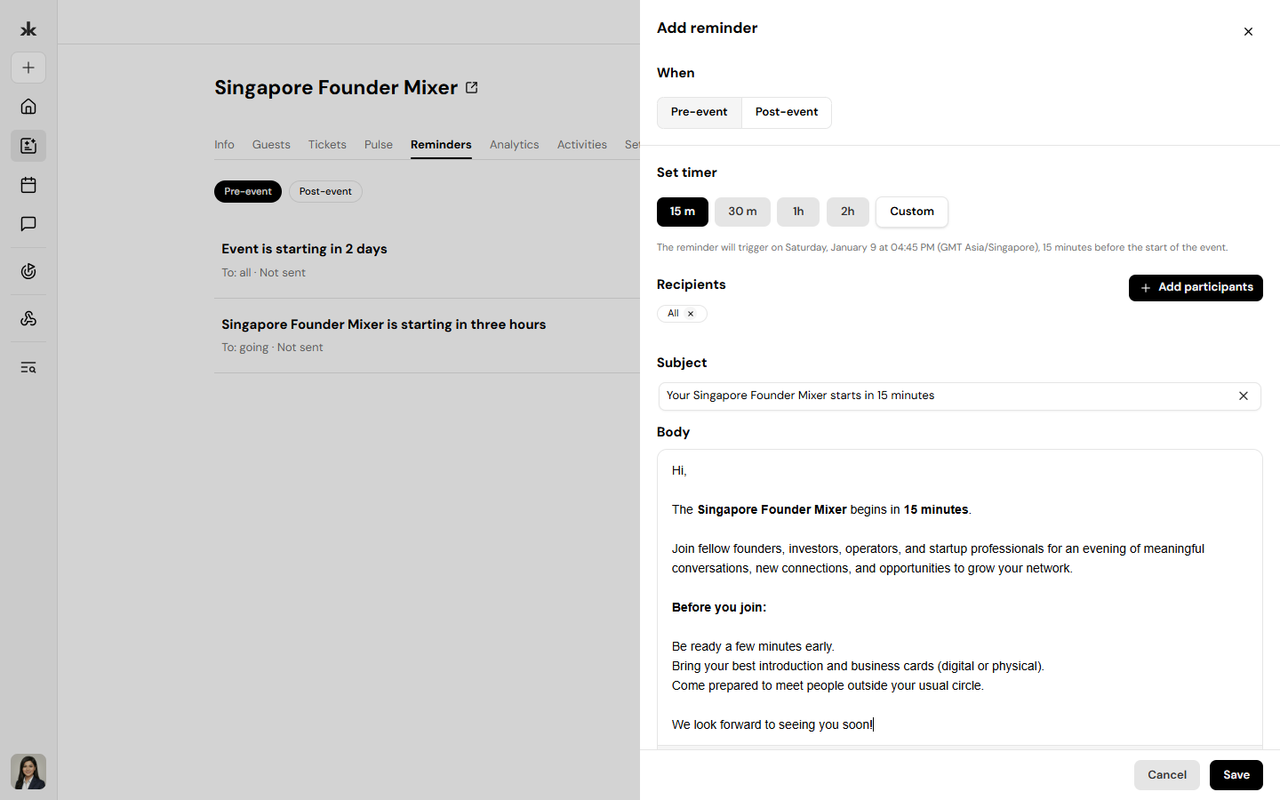
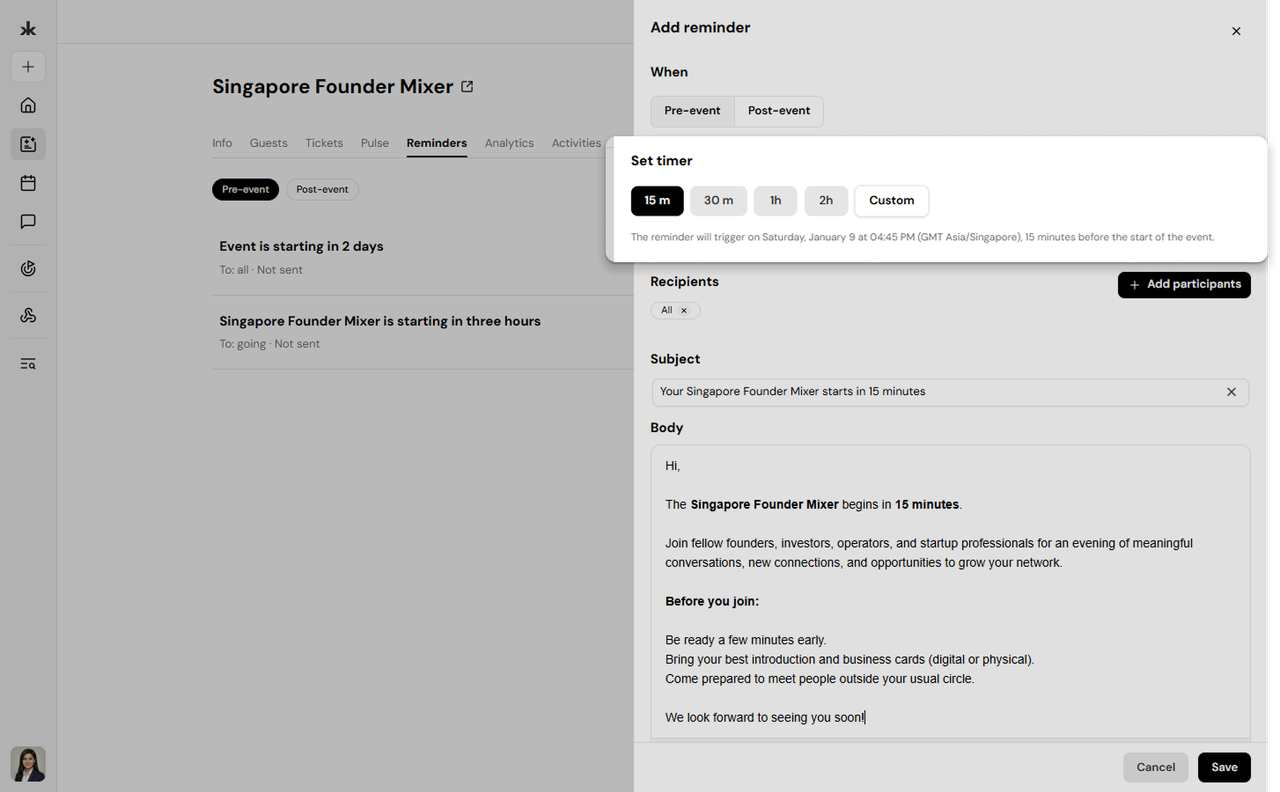
You can choose from preset time options for scheduling a reminder. For example, a pre-event reminder can be scheduled for:
- 15 minutes before the event
- 30 minutes before the event
- 1 hour before the event
- 2 hours before the event
You can also use a Custom timer to set a different time. For post-event reminders, select the appropriate time after the event based on the available options.
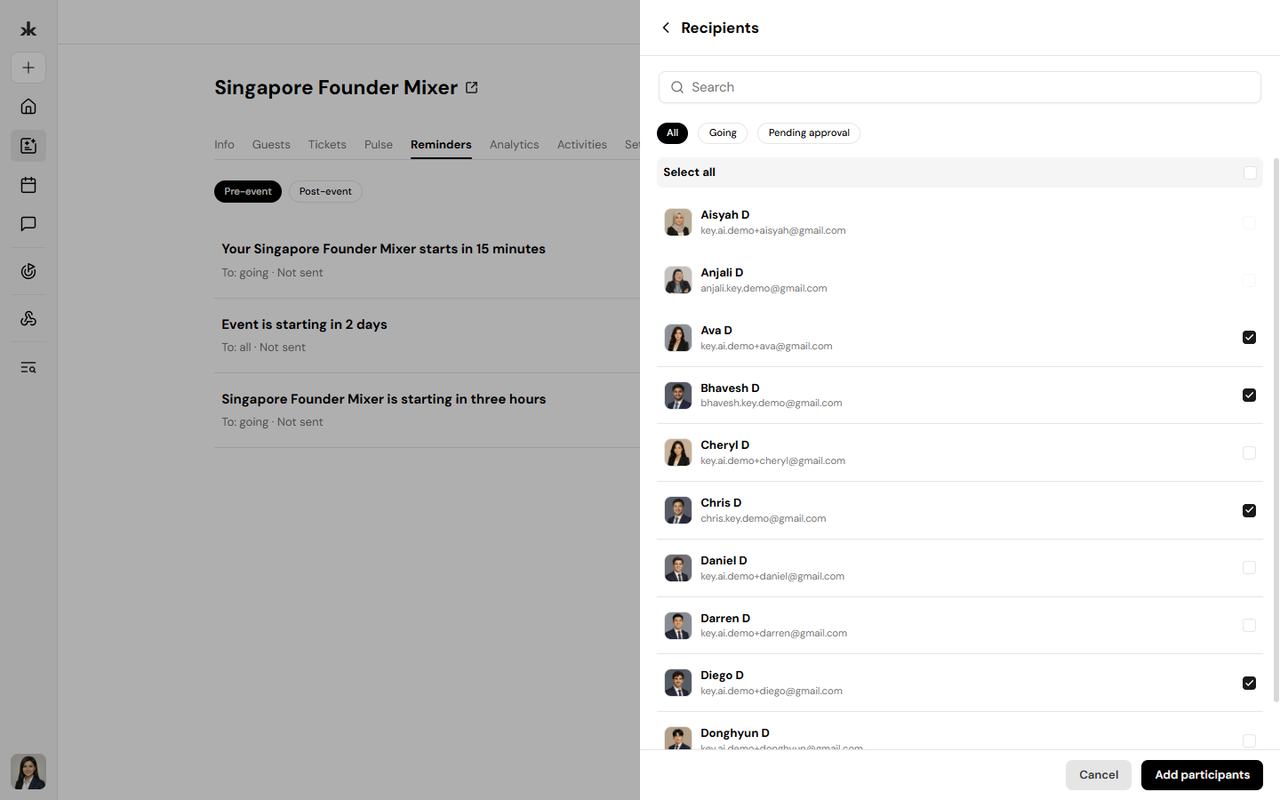
You can choose who should receive the reminder. Depending on the reminder, you can send it to:
- All participants
- Selected participants
Select the appropriate recipients when creating the reminder.
Customize the Reminder
You can customize the content of your reminder by adding:
- Subject - The title of the reminder.
- Message body - The content you want to send to recipients.
Use the available formatting options to format the message as needed.
Manage Reminders
After creating a reminder, you can manage it from the Reminders tab.
Depending on the reminder's status, you can:
- View the reminder.
- Edit the reminder.
- Delete the reminder.
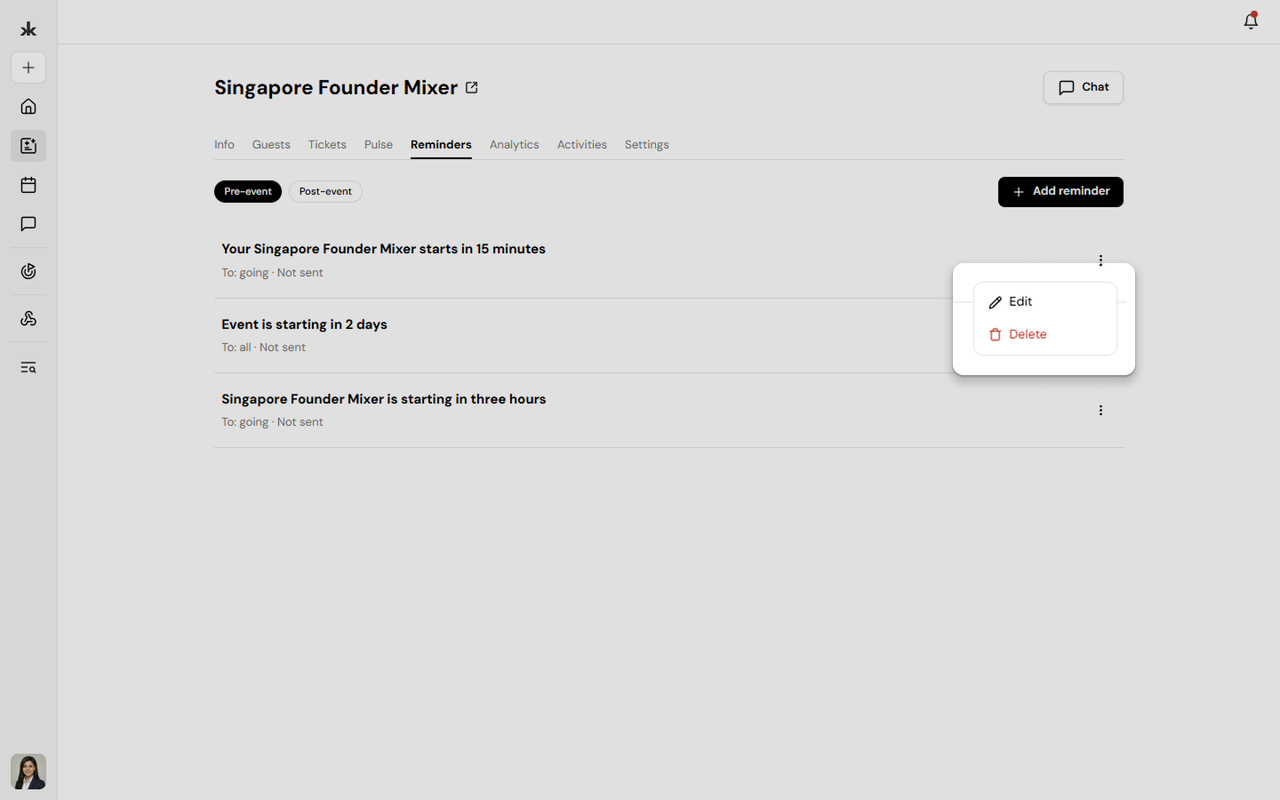
To access additional actions, open the three-dot menu associated with the reminder.
Edit a Reminder
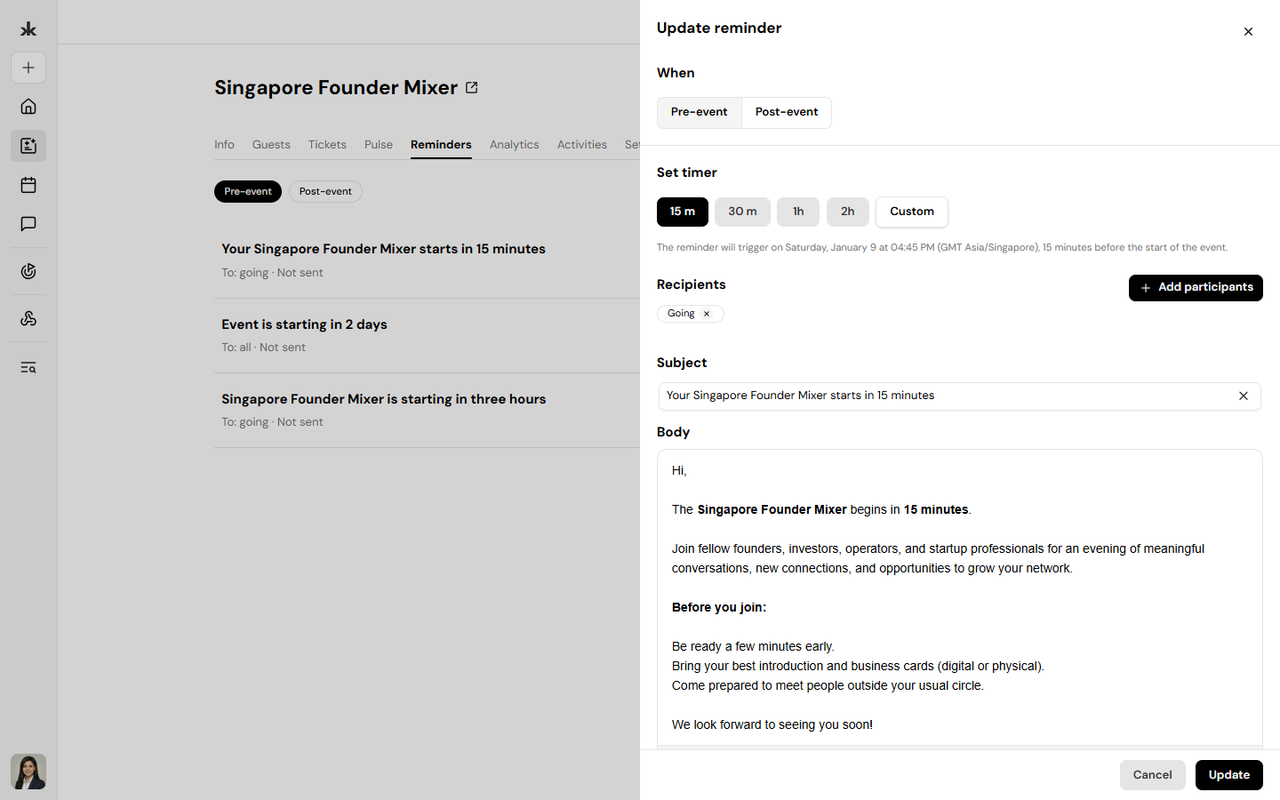
To edit a reminder:
- Open the Reminders tab.
- Find the reminder you want to change.
- Open the three-dot menu.
- Select Edit.
- Update the reminder details.
- Save your changes.
Delete a Reminder
To delete a reminder:
- Open the Reminders tab.
- Find the reminder you want to remove.
- Open the three-dot menu.
- Select Delete.
- Confirm the deletion if prompted.
Reminder Status
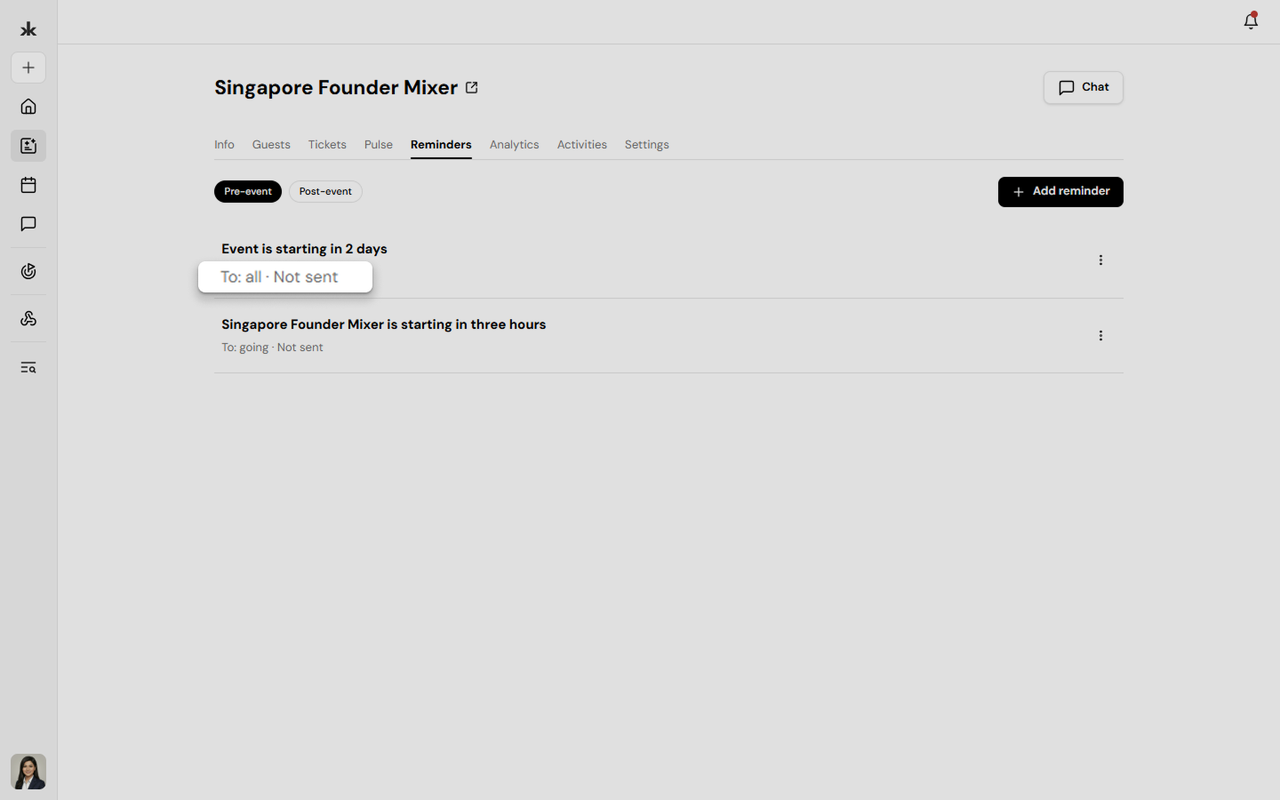
The Reminders tab shows the status of each reminder.
A reminder may show whether it has:
- Not been sent - The reminder is scheduled for a future time.
- Sent - The reminder has already been delivered according to its schedule.
Examples of Reminders
Common examples of pre-event reminders include:
- Event starts tomorrow.
- Event starts in three hours.
- Event starts in one hour.
- Event starts in 30 minutes.
You can also create custom reminders based on your communication needs.
Frequently Asked Questions
Can I send reminders before an event?
Yes. You can create pre-event reminders and schedule them to be sent before the event begins.
Can I send reminders after an event?
Yes. You can create post-event reminders for follow-up communication after the event.
Can I choose who receives a reminder?
Yes. You can send reminders to all participants or select specific participants, depending on the available recipient options.
Can I customize the reminder message?
Yes. You can customize the subject and message body.
Can I edit a reminder after creating it?
Yes. Existing reminders can be edited from the Reminders tab.
Can I delete a reminder?
Yes. You can delete a reminder from the three-dot menu.
Calendars Calendars