Overview
The Create Event feature allows users to create and manage events on the Key AI platform. Events can be created for personal use or submitted to a community calendar, depending on your permissions. The event creation experience provides a guided form where you can enter event details, configure registration settings, and use Kai to help generate or improve the event description.
Who Can Create Events?
Creating an event is available to all users in Key AI. However, whether an event appears on a community calendar depends on your role and permissions within that community.
- Community Admins and Calendar Admins can create and publish events directly to the community calendar.
- Users without calendar management permissions can still create events, but they must submit the event for approval before it appears on the community calendar.
Once an event is approved by a Community Admin or Calendar Admin, it becomes visible on the community calendar.
Access the Create Event Page
To create a new event:
- Navigate to the Events section.
- Click Create Event.
- Complete the required event information.
- Review your event details.
- Click Create Event.
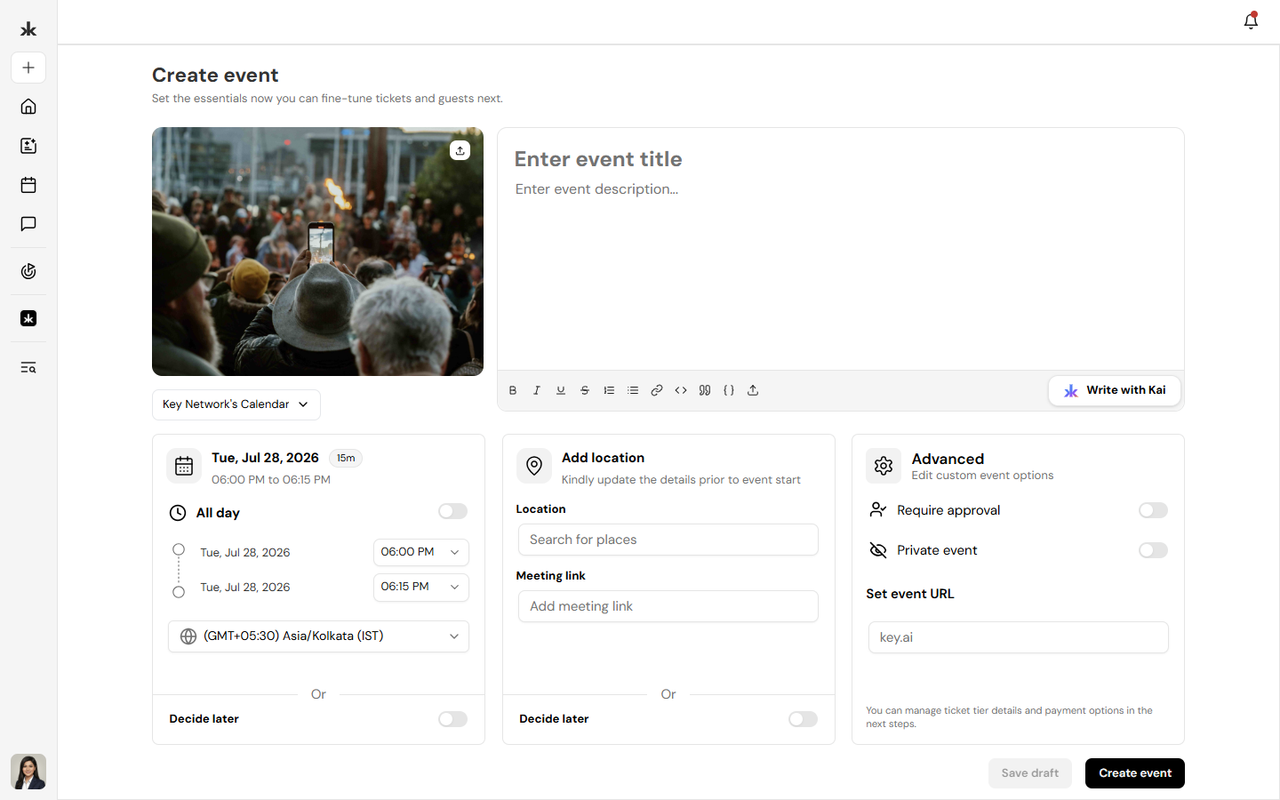
Configure Event Details
When creating an event, provide the required information, including:
- Event title
- Event description
- Event cover image (optional)
- Calendar where the event will be published
- Date and time
- Time zone
- Location or meeting link
- Custom event URL (optional)
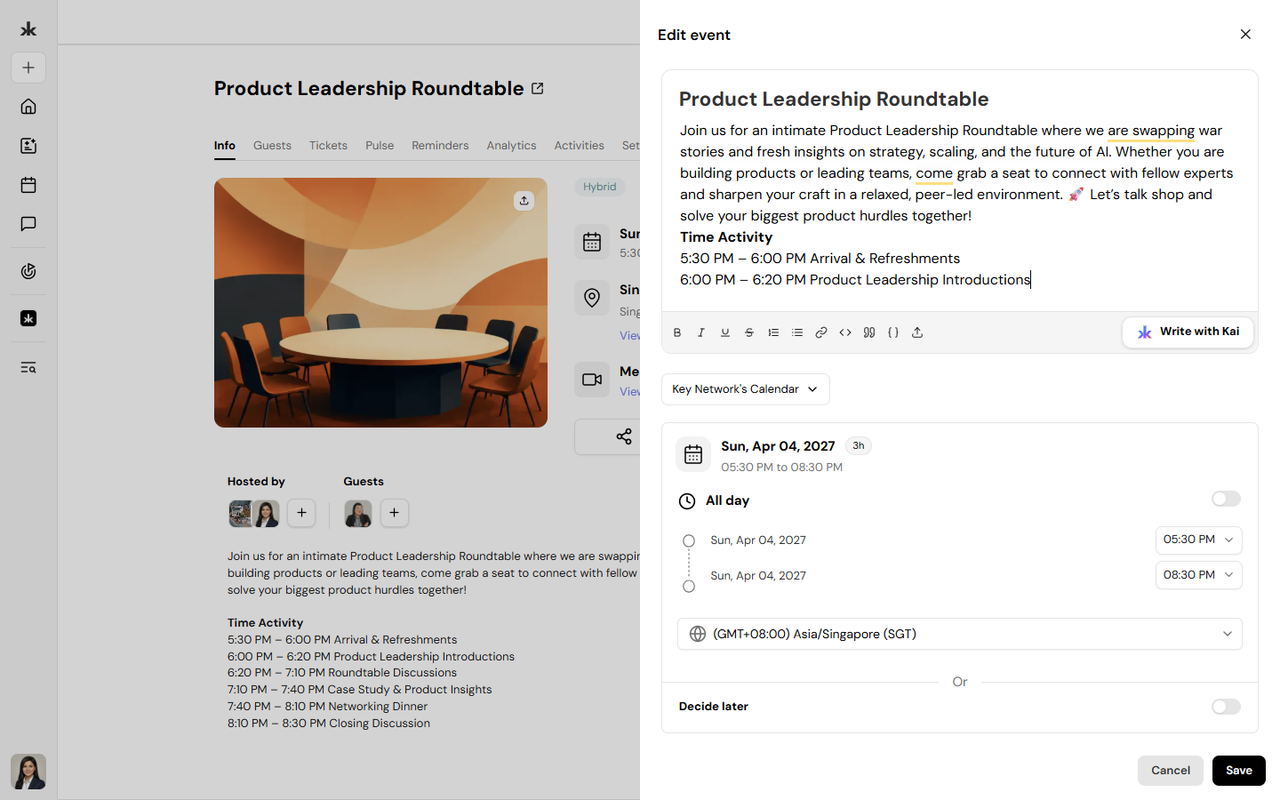
You can use Write with Kai to generate or refine the event description before creating the event. If certain information is not yet finalized, you can use the Decide Later option for the event schedule and/or location. This allows you to create the event first and update those details later.
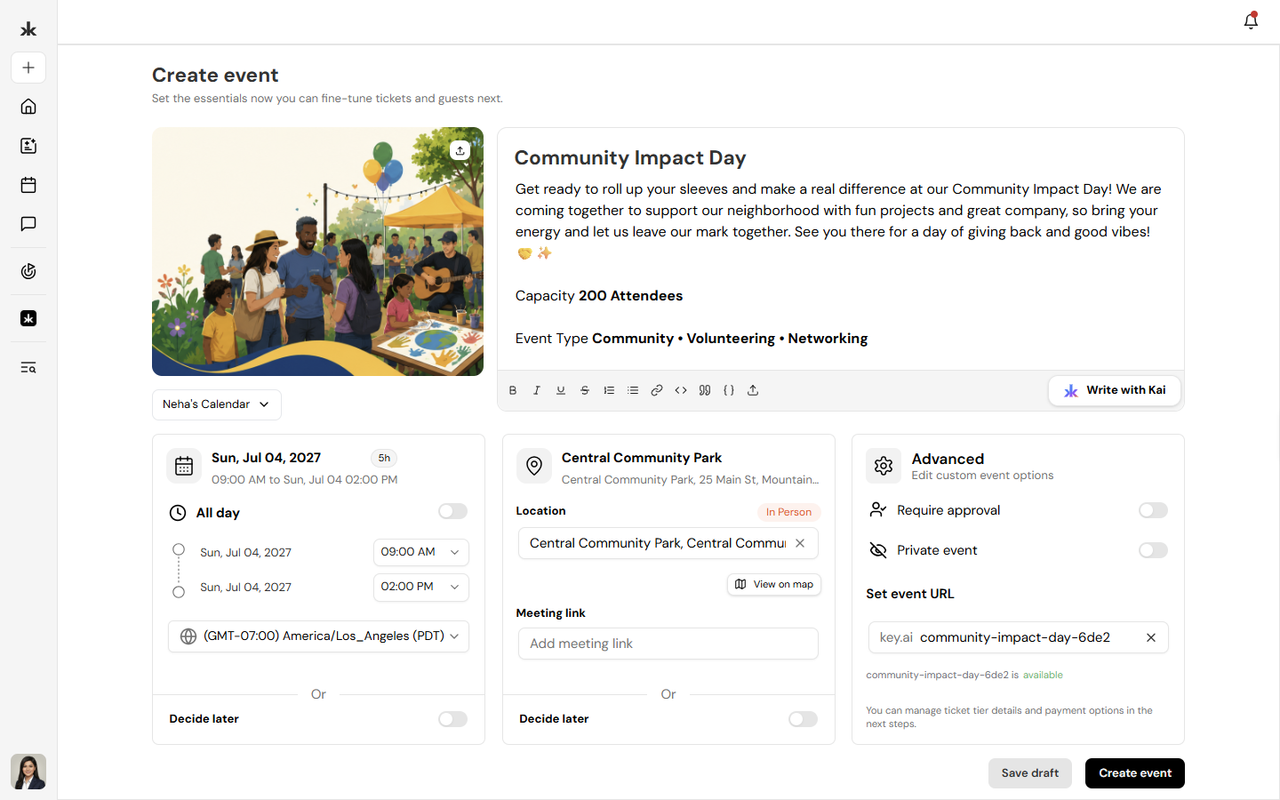
Use Kai to Write the Event Description
While creating an event, you can use Write with Kai to generate or improve the event description. Provide a prompt or brief details about your event, and Kai will generate a well-structured description that you can review and edit before saving.
Using Kai can help you:
- Generate event descriptions faster.
- Improve clarity and readability.
- Save time when creating events.
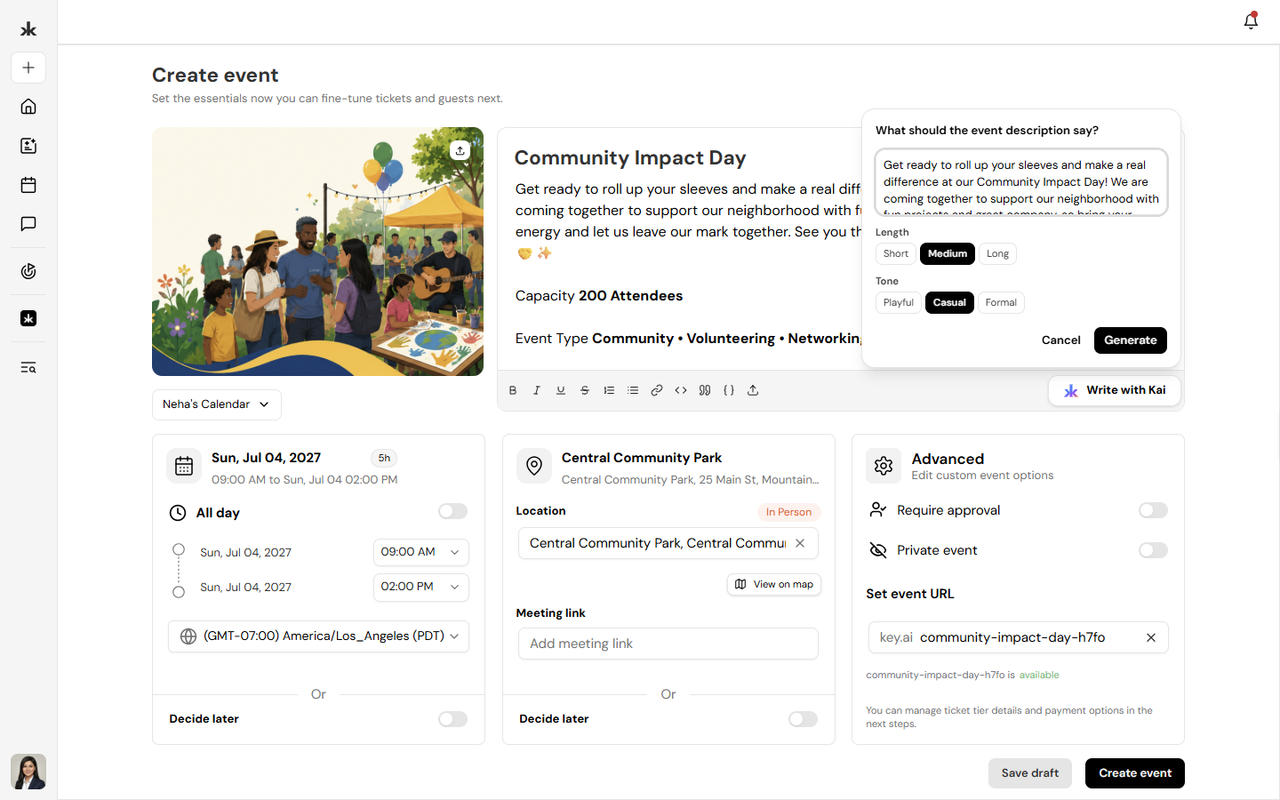
Configure Advanced Settings
The Advanced section allows you to configure additional event options, including:
- Require Approval - Require attendees to be approved before joining the event.
- Private Event - Restrict the event so only invited or authorized participants can access it.
- Custom Event URL - Create a custom URL for easier sharing.
These settings can be updated later if needed.
Configure Registration
Depending on your event requirements, you can configure registration settings such as:
- Registration availability
- Capacity limits (if applicable)
- Registration questions
- Attendance requirements
Event registration questions are configured separately from community onboarding questions.
Create or Submit an Event
After reviewing your event details:
- Verify that all information is accurate.
- Click Create Event.
Depending on your permissions:
- If you have permission to publish events to the selected community calendar, the event is published immediately.
- If you do not have publishing permission, the event is submitted for approval. A Community Admin or Calendar Admin must approve it before it appears on the community calendar.
Once approved, the event becomes visible according to its visibility settings.
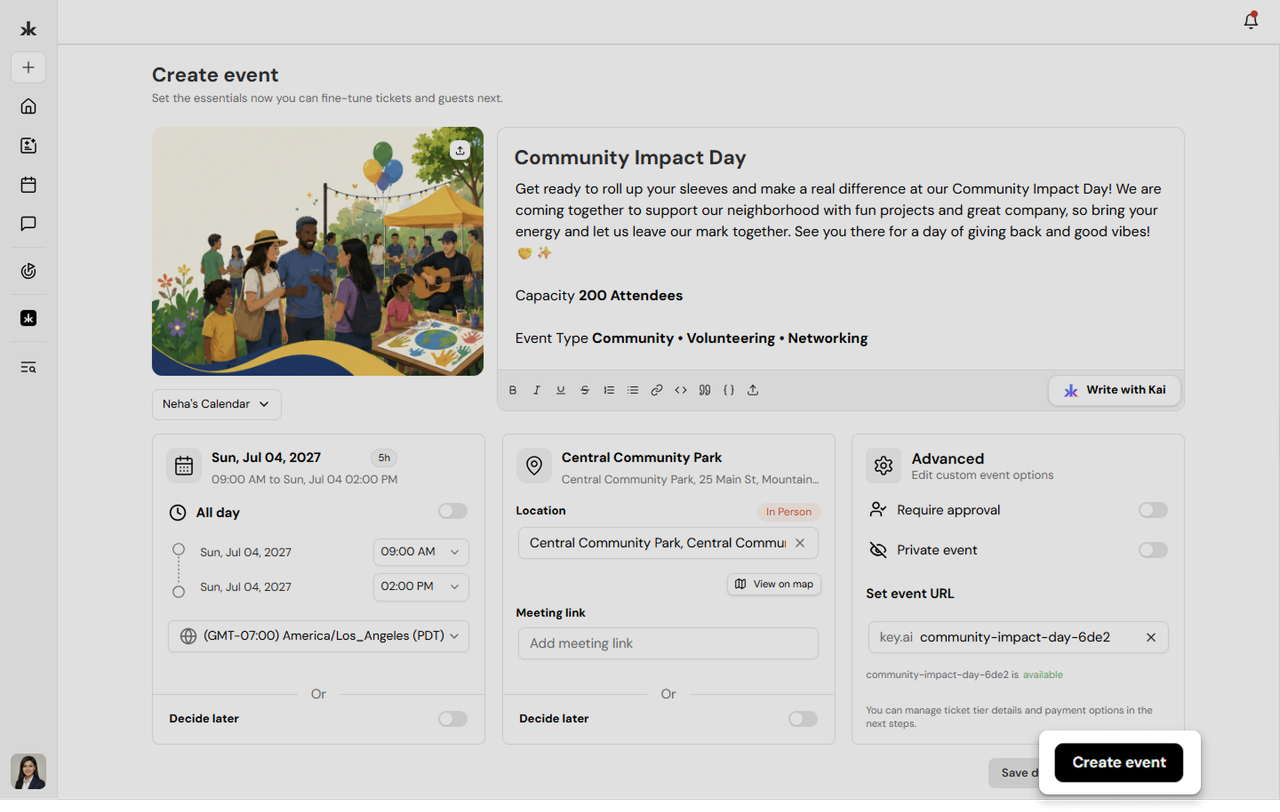
Edit an Event
Users with permission to manage an event can update its details after it has been created.
You can modify information such as:
- Event title
- Cover image
- Date and time
- Time zone
- Location or meeting link
- Registration settings
- Advanced settings
Changes are reflected once the event is updated.
Best Practices
- Choose a clear and descriptive event title.
- Add a detailed event description to help attendees understand the event.
- Use Write with Kai to create professional event descriptions quickly.
- Verify the date, time, and time zone before publishing.
- Add an accurate location or meeting link whenever possible.
- Use the Decide Later option if event details are still being finalized.
- Review the advanced settings before creating the event.
- Update attendees if important event details change after publication.
Frequently Asked Questions
Who can create an event?
All users can create events on Key AI.
Who can publish an event to a community calendar?
Community Admins and Calendar Admins can publish events directly. Other users can submit events for approval.
Can I use AI to create an event?
There is no AI event creation option. However, you can use Write with Kai to generate or improve the event description while creating the event.
Can I create an event if I don't know the date or location yet?
Yes. You can use the Decide Later option for the event schedule and/or location, then update those details before the event takes place.
Can I edit an event after creating it?
Yes. Users with the appropriate permissions can update event details after the event has been created. Are event registration questions the same as community registration questions? No. Event registration questions are managed separately from community onboarding questions.
- Advanced Settings
- Registration Settings
- Create Event
- Edit Event