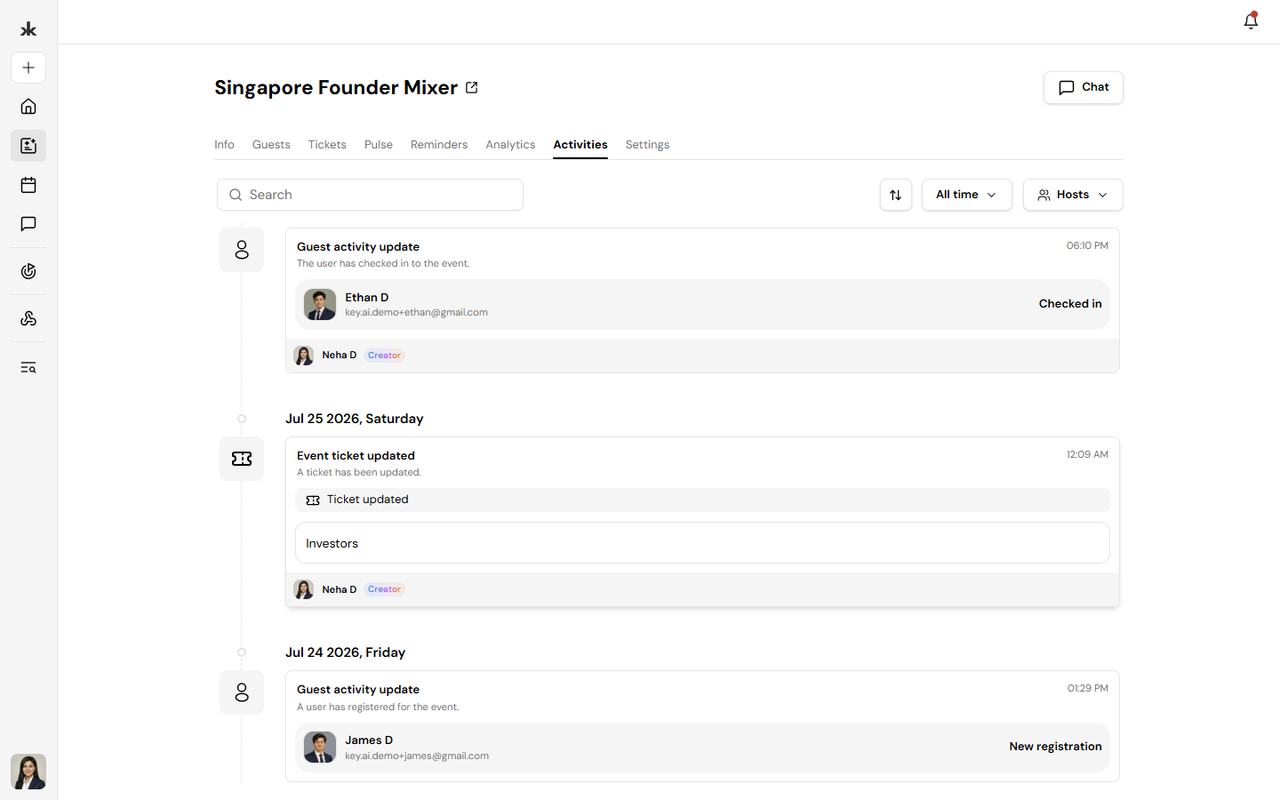
The Activities tab provides a timeline of actions performed for the event. It helps organizers track important event-related activities in chronological order. The timeline serves as an audit log, making it easy to review changes and monitor event updates.
Viewing Event Activities
Open the Activities tab from the event page to view the complete activity history. Activities are displayed in chronological order, with the most recent actions appearing first. Depending on the actions performed, the timeline may include entries such as:
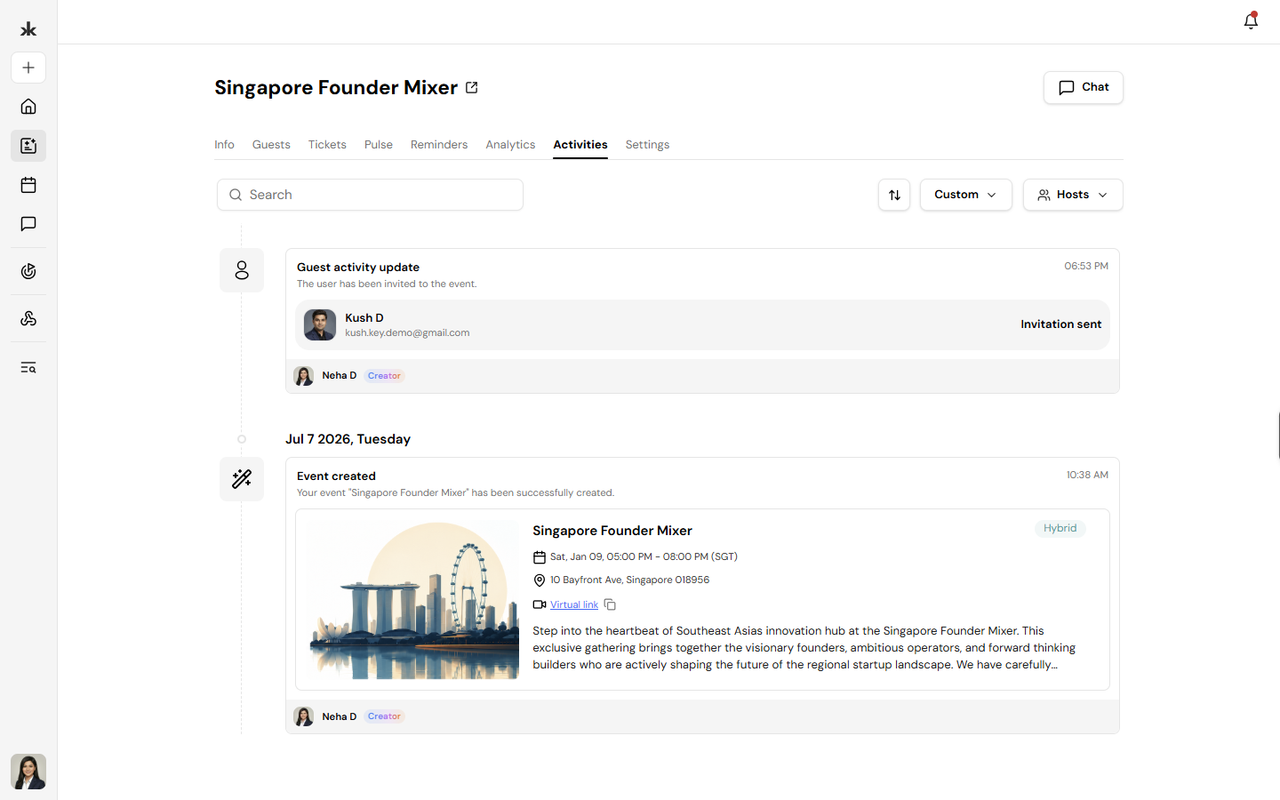
- Event created
- Event updated
- Guest invited
- Guest registered
- Guest checked in
- Reminder sent
- Broadcast sent
- Ticket purchased
- Ticket canceled
- Registration approved (when approval is enabled)
The exact activities shown depend on the actions performed for that event.
Activity Details
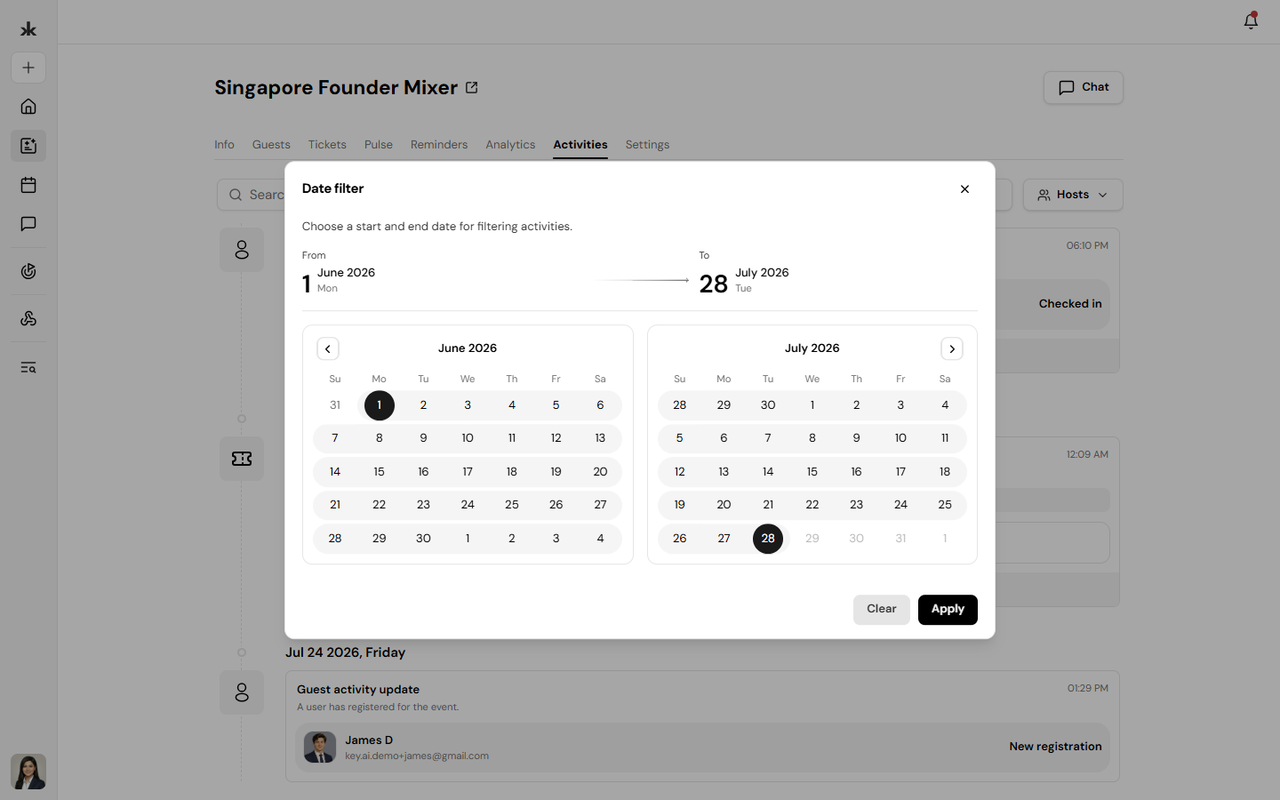
Each activity entry includes relevant information to help identify what happened.
Depending on the activity, entries may display:
- Activity type
- User who performed the action
- Guest involved
- Date and time of the activity
This makes it easier to audit changes and review the event history.
Why Use the Activities Tab?
The Activities tab helps organizers:
- Track changes made to an event
- Review guest-related actions
- Monitor communication history
- Audit important event updates
- Maintain visibility into event management
It serves as a centralized history of event activity throughout the event lifecycle.