Pulse

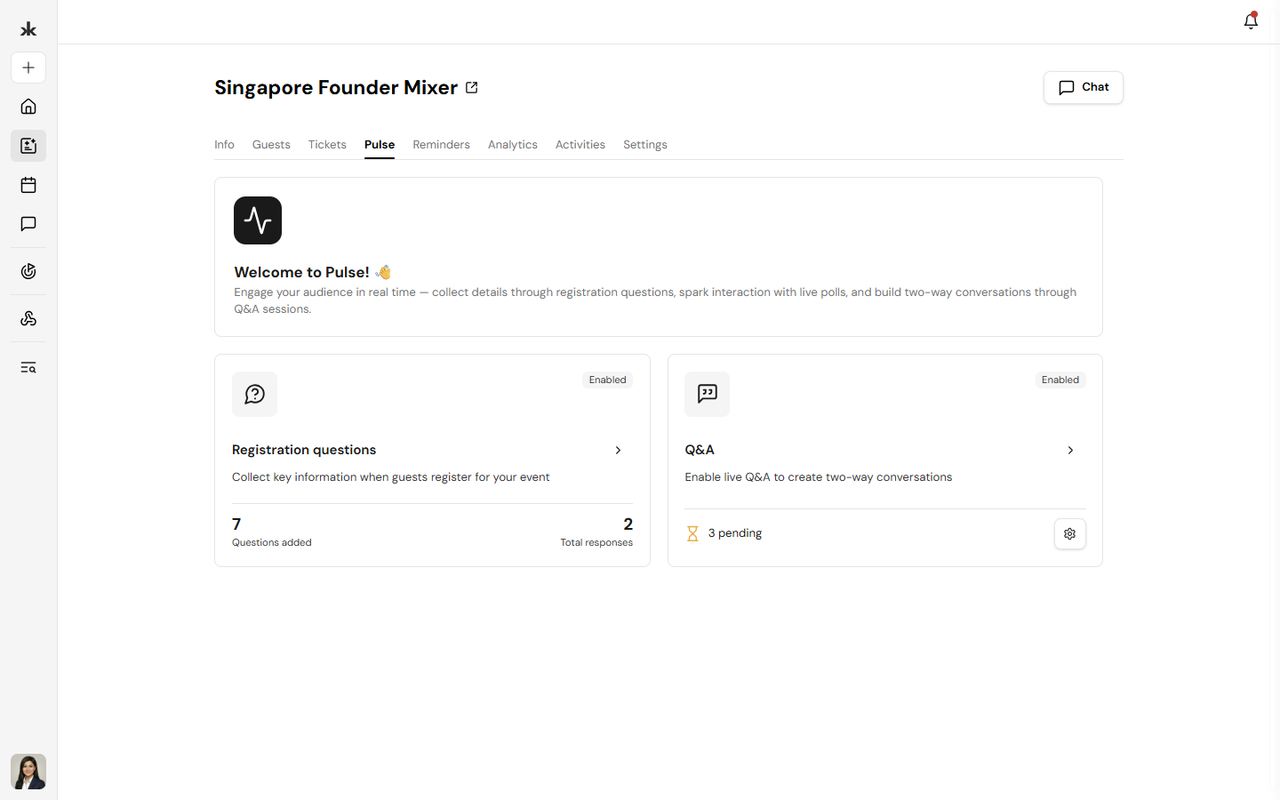
Registration questions and polls for members and event organisers.

Using pulse user can create Registration questions and Q&A

Members can fill them out directly in Key, and organisers can track responses in real time.

What are Registration questions?

Using pulse user can create Registration questions and Q&A

Members can fill them out directly in Key, and organisers can track responses in real time.

When to use Registration questions

Using pulse user can create Registration questions and Q&A

Members can fill them out directly in Key, and organisers can track responses in real time.

Pulse types

Using pulse user can create Registration questions and Q&A

Members can fill them out directly in Key, and organisers can track responses in real time.

Question types

Using pulse user can create Registration questions and Q&A

Members can fill them out directly in Key, and organisers can track responses in real time.

Fill out a pulse (for members)

Answer a pulse

  • Open the registration questions
  • Complete each question
  • Tap Next (if multiple sections)
  • Tap Submit at the end

Note: Required questions must be answered before moving forward.

Save your progress

  • Multi-step registration questions save your progress automatically
  • You can leave and return anytime

Smart prefill (optional)

Registration questions suggest answers based on your past responses.

  • Suggestions are only based on your own data
  • You can accept, edit, or ignore them

After submitting

  • Your response is confirmed on screen
  • You can only submit once
  • Responses cannot be edited after submission

If you need to make changes, contact the organiser.

Create a poll (for organisers)

Who can create polls

  • Event hosts
  • Community admins or moderators
  • Members with the right permissions

Step 1 — Set up the registration question

  • Go to your community or event
  • Open Pulse → Registration question
  • Add:
  • Sections
  • Questions
  • Logic

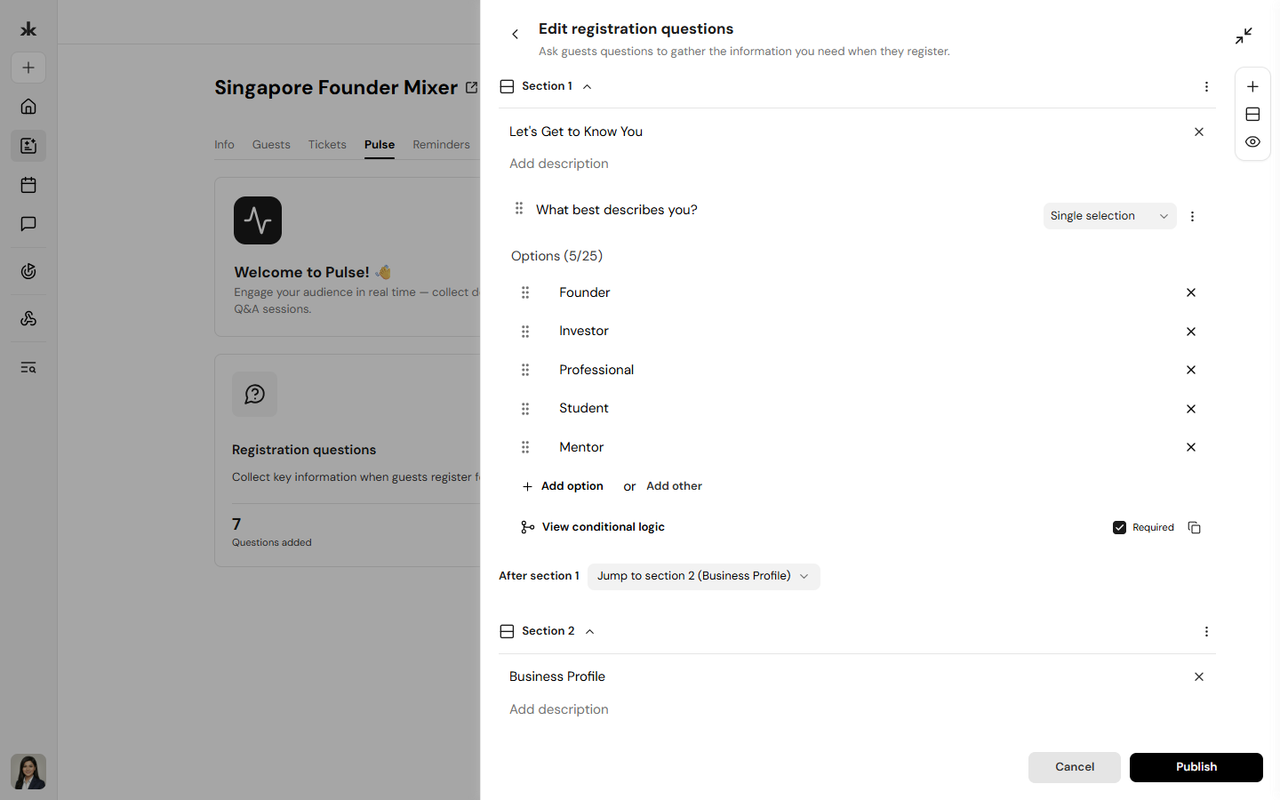
Step 2 — Add sections and questions

  • Tap Add Section
  • Inside the section, tap Add Question
  • Choose question type and add content
  • Mark as Required if needed

Repeat for all sections.

Step 3 — Add logic (optional)

Examples:

  • Show questions based on previous answers
  • Skip sections entirely
  • Jump to specific sections or submit

Step 4 — Publish

  • Preview the questions
  • Publish the questions

Manage Registration questions

Edit the registration questions

  • Update questions, sections, or logic anytime
  • Changes apply to new responses

Note: Changing options may affect results.

Delete content

  • Delete individual questions or sections
  • Or delete the entire poll (permanent) this is only allowed if there are no responses so far from any member

View results

Response insights

See:

  • Total responses
  • Answers per question
  • Distribution of choices

Export data

  • Some plans support CSV export
  • If not available, contact support

Reuse past Registration questions (events)

Using pulse user can create Registration questions and Q&A

Members can fill them out directly in Key, and organisers can track responses in real time.

Privacy

Using pulse user can create Registration questions and Q&A

Members can fill them out directly in Key, and organisers can track responses in real time.

FAQs

Can I submit more than once?

No — only one response per person.

Can I save and finish later?

Yes, for multi-section polls.

What if the registration question closes while I’m filling it out?

Your submission won’t be saved. Make sure to submit before the deadline.

Can I edit my answers after submitting?

No. Contact the organiser for changes.

Can I see other responses?

No — only organisers can view all responses.

Why are some questions skipped?

The registration question may use logic to show only relevant questions.

Can registration questions be used outside events?

Yes — they can be used in communities

Still need help?

Can't find what you're looking for? Our team is here.

Contact us