Getting Started
New to Key AI? Start here — learn what the platform does and how to explore every topic in the Help Center.
Welcome to Key AI↗
Overview
Welcome to Key AI - and to this Help Center. Key AI is where professional communities come together: join groups, attend events, share knowledge, discover opportunities, and get help from Kai, your AI assistant. Whether you are a new member or a community leader, these guides walk you through the platform step by step.
What this Help Center covers
Use the topics below to learn everything Key AI can do. You do not need to read everything at once - start with what matters to you, then come back when you are ready to go deeper.
- Account & Profile - Create your account, sign in, build your profile, and manage notifications.
- Communities - Create, join, or run communities with channels, members, roles, and a shared library.
- Events & Calendars - Create and discover events, sell tickets, check in guests, and manage calendars.
- Opportunities - Find, create, and share intros, talent, ventures, plugs, and resources matched to your goals.
- Kai AI - Ask questions, discover people, draft content, and get personalized recommendations.
- Pulse & Registration - Ask custom registration questions and collect answers when people join a community or register for an event.
- Live Q&A - Let attendees ask questions and upvote favorites during events.
Your first steps
If you are brand new, we recommend this order:
- Create your account and complete your profile so others can find and connect with you.
- Join a community - or create one if you are setting up for your organization.
- Browse upcoming events and register for anything that interests you.
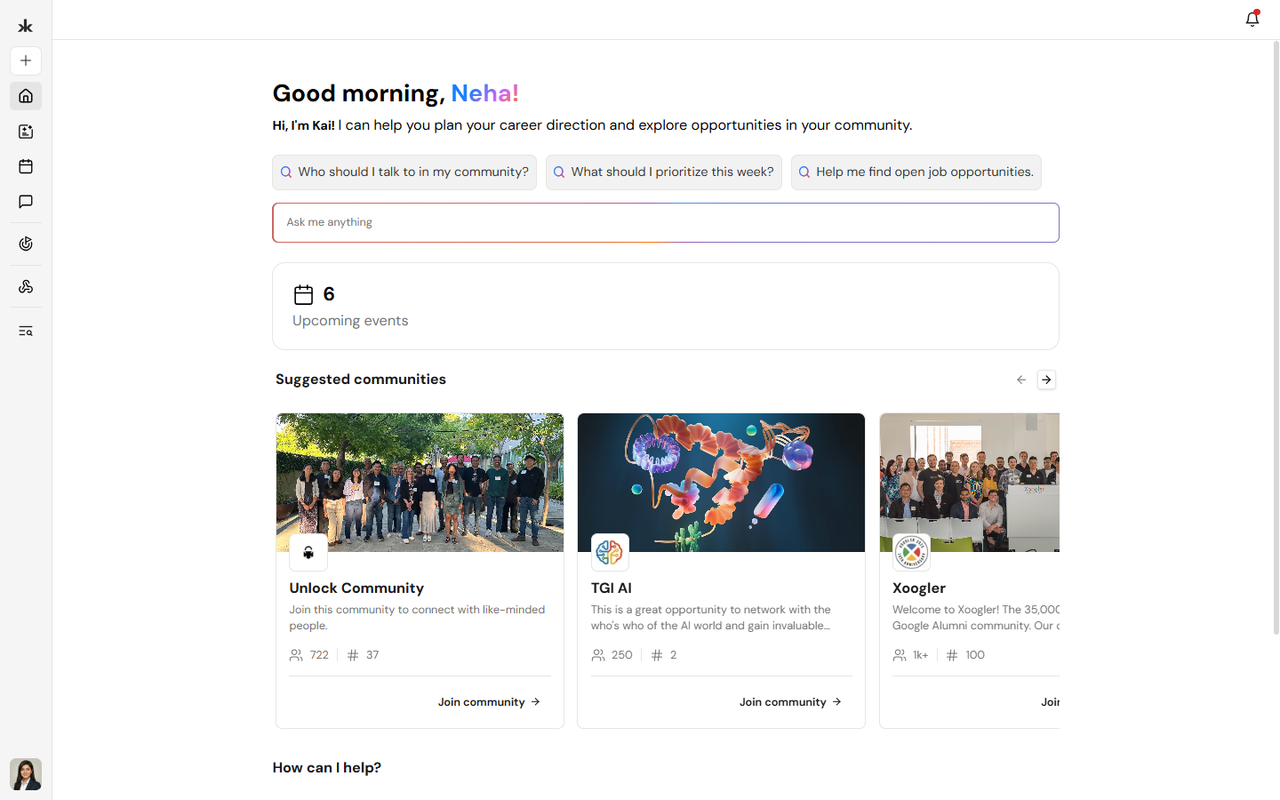
- Ask Kai a question from the Home page to see how AI can help you navigate Key AI.
- Explore Opportunities to discover relevant intros, roles, or collaborations.
When you are ready, open Navigate Key AI for a guided tour of each topic area.
Who uses Key AI?
Most people start as Community Members - you can join communities, attend events, use the library, discover opportunities, and participate in Q&A. Community Admins and event hosts have additional tools to manage members, events, calendars, registration questions, and community settings. Your access depends on the roles assigned in each community.
Navigate Key AI↗
Overview
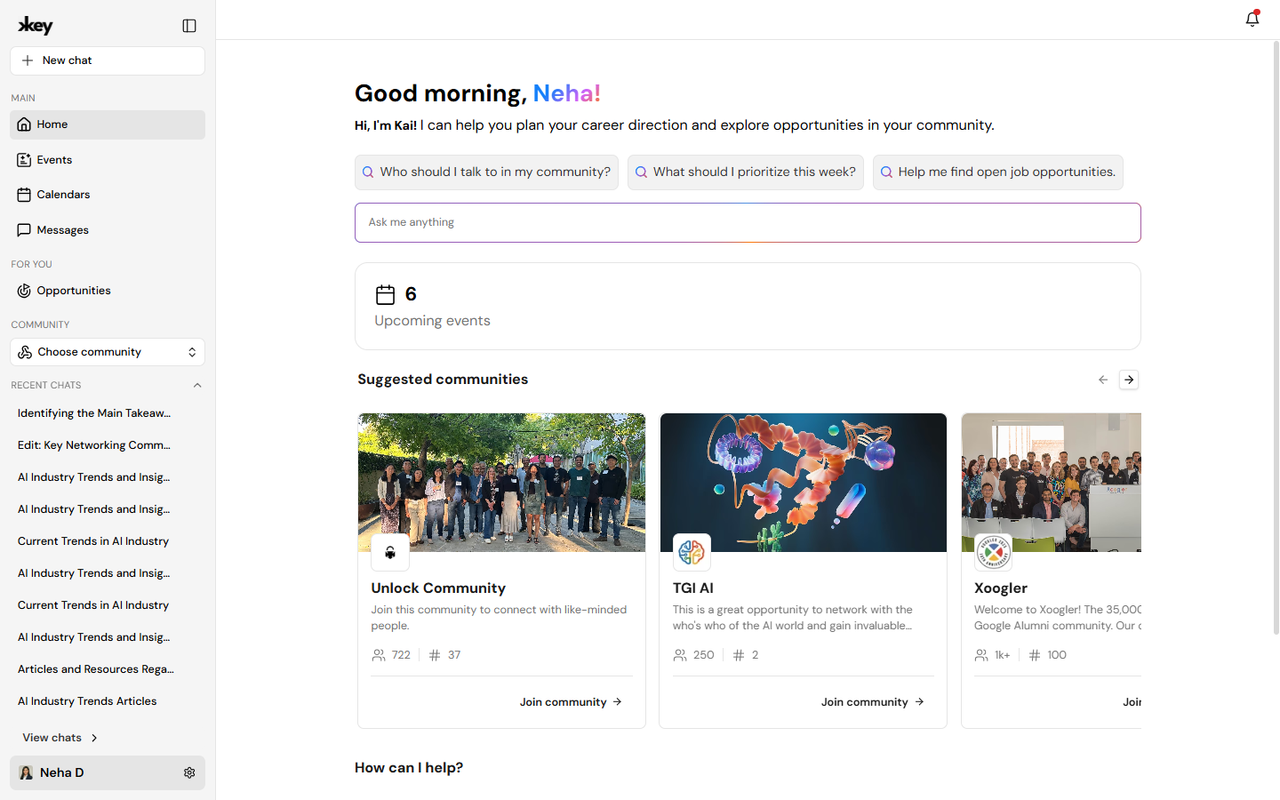
Key AI is organized around a few big ideas: your identity, your communities, your events, and the connections and opportunities that grow from them. Kai ties it all together. This article is your map. Each section below links to detailed guides - work through them at your own pace, or jump straight to what you need today.
Account and profile
Your profile is how other members discover you. A complete profile helps Kai recommend better connections and helps communities understand your background. Learn how to sign in, enrich your profile with AI, connect Google Meet, and control notifications in Account & Profile.
Communities
Communities are private spaces for your group - channels for conversation, a member directory, roles and permissions, a shared library, and onboarding for new members. If you are joining: start with Communities Overview and how to join. If you are leading: read Create a Community, Manage Members, and Roles & Permissions.
Events and calendars
Events bring people together in person, online, or both. You can browse events, register, host with tickets and reminders, check in guests, and publish events to community calendars. Start with Events Overview, then Create an Event and Calendars when you are ready to host.
Opportunities
Opportunities surface intros, hiring, fundraising, recommendations, and resources from your network and communities. Update your goals to get better matches, then browse, save, or create opportunities. See Opportunities Overview for the five opportunity types and how discovery works.
Kai AI
Kai helps you find people, understand library content, draft event descriptions, and explore what is happening across Key AI. You can start from the Home page, open a new chat, or continue a recent conversation. Read Kai AI to learn where Kai appears and what it can help you create.
Pulse, registration, and live Q&A
Pulse lets organizers ask custom registration questions and collect answers when someone joins a community or registers for an event - great for onboarding and logistics. Live Q&A lets attendees submit and upvote questions during an event without interrupting the session. Hosts should read Pulse Overview and Live Q&A; members mostly answer questions and participate during events.
Suggested learning paths
New member path:
- Welcome to Key AI
- Create an Account and Complete Your Profile
- Communities Overview
- Events Overview
- Kai AI
Community leader path:
- Create a Community
- Roles and Permissions
- Create an Event
- Pulse Overview
- Event Reminders
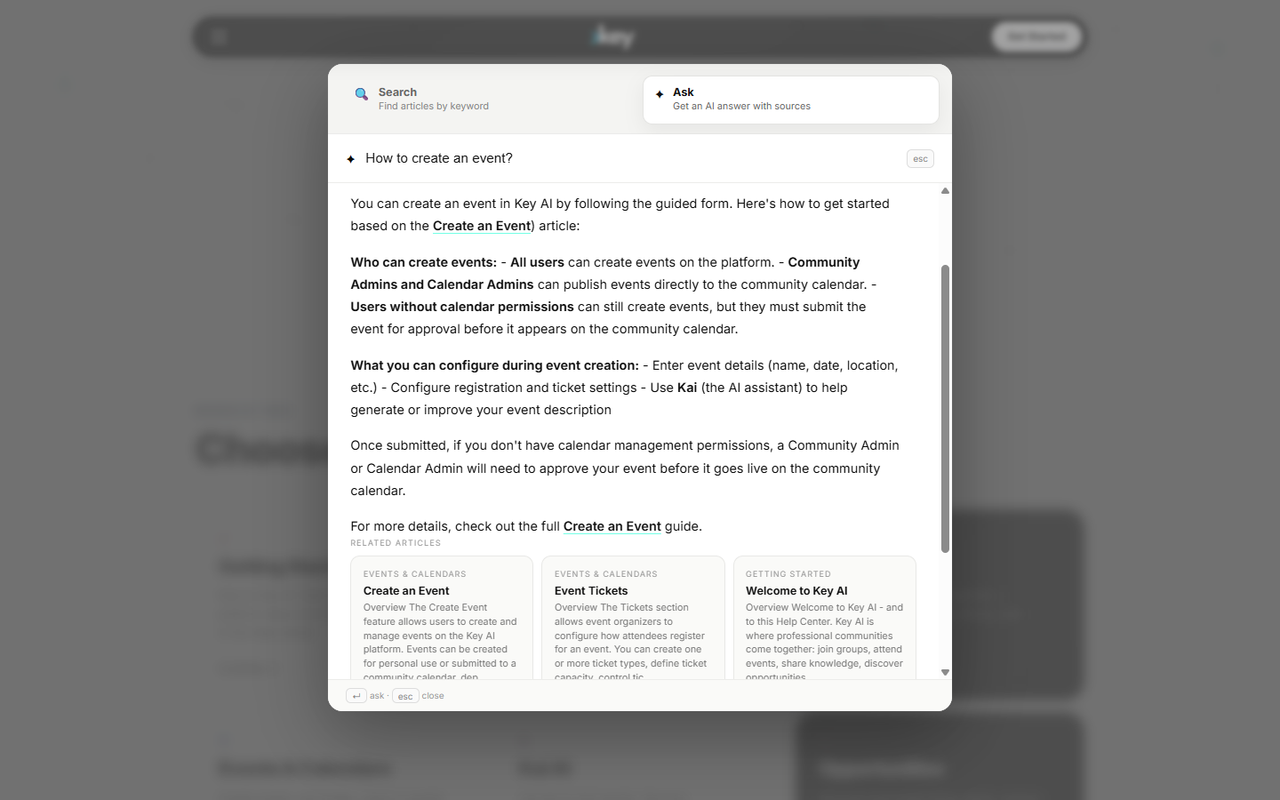
Tip: Use Search or Ask at the top of any Help Center page when you know what you are looking for. Ask can answer questions in plain language and point you to the right guide.
User Roles & Permissions↗
Overview
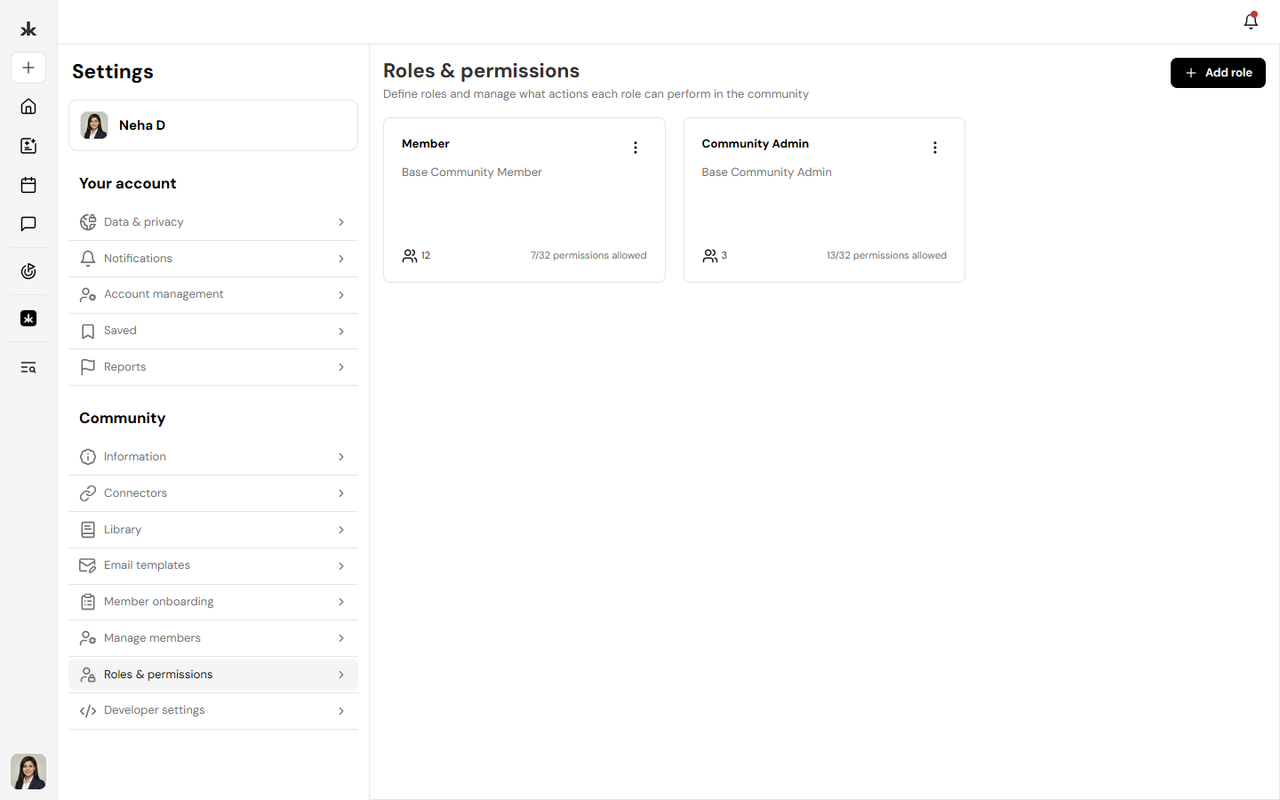
Key AI uses roles to control what each person can do inside a community. You do not need to understand every permission on day one - this article explains the basics so you know what to expect.
Default roles
Member
Members participate in the community: channels, events, library, opportunities, and their own profile. Typical member capabilities include viewing content, joining events, and responding to registration questions when they join or RSVP.
Admin
Admins manage the community: settings, members, events, calendars, library, Pulse questions, and opportunities. They can also create custom roles and assign permissions to other members.
Custom roles
Community Admins can create roles like Channel Manager, Library Manager, or Moderator with only the permissions those volunteers need. This keeps access secure while delegating work across the team. For full details on creating roles and assigning permissions, see Roles & Permissions in the Communities section.
What this means for you
- If something is missing from your menu, you may not have permission yet - ask a Community Admin.
- If you are an Admin, assign the minimum permissions people need and review roles as your community grows.
- Roles are per community. You can be a Member in one community and an Admin in another.
Frequently Asked Questions
Why can I not edit community settings?
Editing community settings requires Admin permissions in that community. Contact a Community Admin if you need access.
Can anyone create an event?
Yes. Event creation is available to all users on Key AI. Publishing an event to a community calendar may require approval from a Community Admin or Calendar Admin.
Can I have different roles in different communities?
Yes. Your role and permissions are set separately for each community you belong to.
Where do I learn to manage roles as an Admin?
See Roles & Permissions and Manage Members in the Communities help section.
Getting Help↗
Overview
You are already in the right place. The Key AI Help Center is the fastest way to learn the platform - search for a topic, browse by section, or ask a question in your own words.
Search the Help Center
Use Search at the top of any help page to find guides by keyword - try sign-in code, create event, join community, or Kai. Search shows matching articles instantly so you can jump to the right guide.
Ask a question
The Ask tab uses AI to answer questions based on these help articles. Ask things like How do I join a community? or How do event tickets work? and you will get a concise answer with links to full guides. Ask works best for how-to questions about Key AI features. For account-specific issues, contact support below.
Contact support
If you cannot find an answer or something is not working, email support@key.ai. Include a short description of the issue, the steps you tried, your browser and device, and screenshots if you have them. Our team will get back to you as soon as possible.
Tips for faster answers
- Search or Ask here first - many questions are already documented.
- Tell us which community or event you were using when the issue happened.
- Try refreshing the page or signing out and back in before you write in.
Frequently Asked Questions
Where should I start if I am new to Key AI?
Read Welcome to Key AI, then Navigate Key AI for a map of every topic. Follow the new member learning path at your own pace.
Can I request a new feature?
Yes. Send feedback and feature ideas to support@key.ai - we read every message.
Does Ask replace contacting support?
No. Ask helps you find how-to answers quickly. Contact support@key.ai for bugs, account issues, or anything Ask cannot resolve.
Still need help?
Can't find what you're looking for? Our team is here.
Contact us