Live Q&A
Live Q&A for attendees and hosts — ask questions, upvote, and follow the discussion.
Live Q&A↗
Live Q&A allows attendees to interact with speakers and other participants during an event.
Attendees can:
- Ask questions.
- View questions submitted by other attendees.
- Upvote questions they would also like answered.
- Remove their upvote if they change their mind.
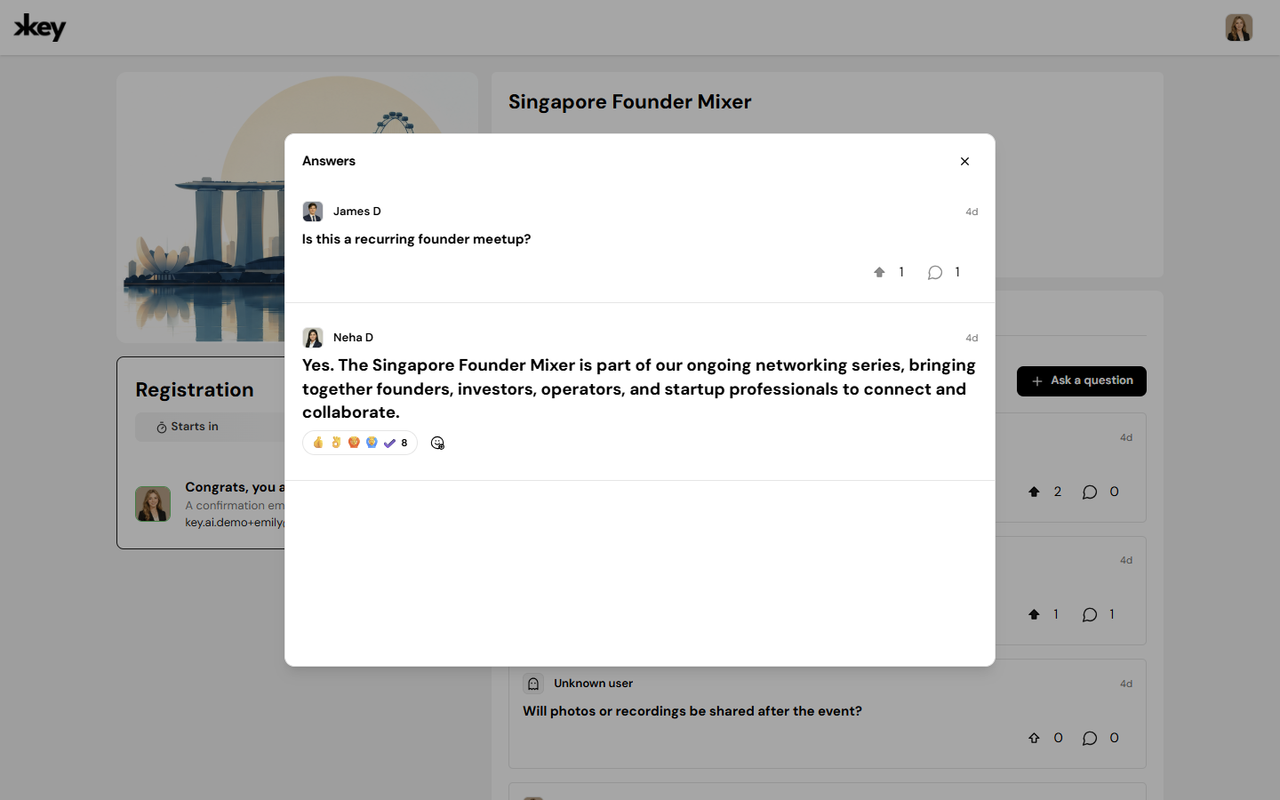
- Follow the discussion as questions are answered.
To access Q&A:
- Open the event page.
- Select the Q&A tab.
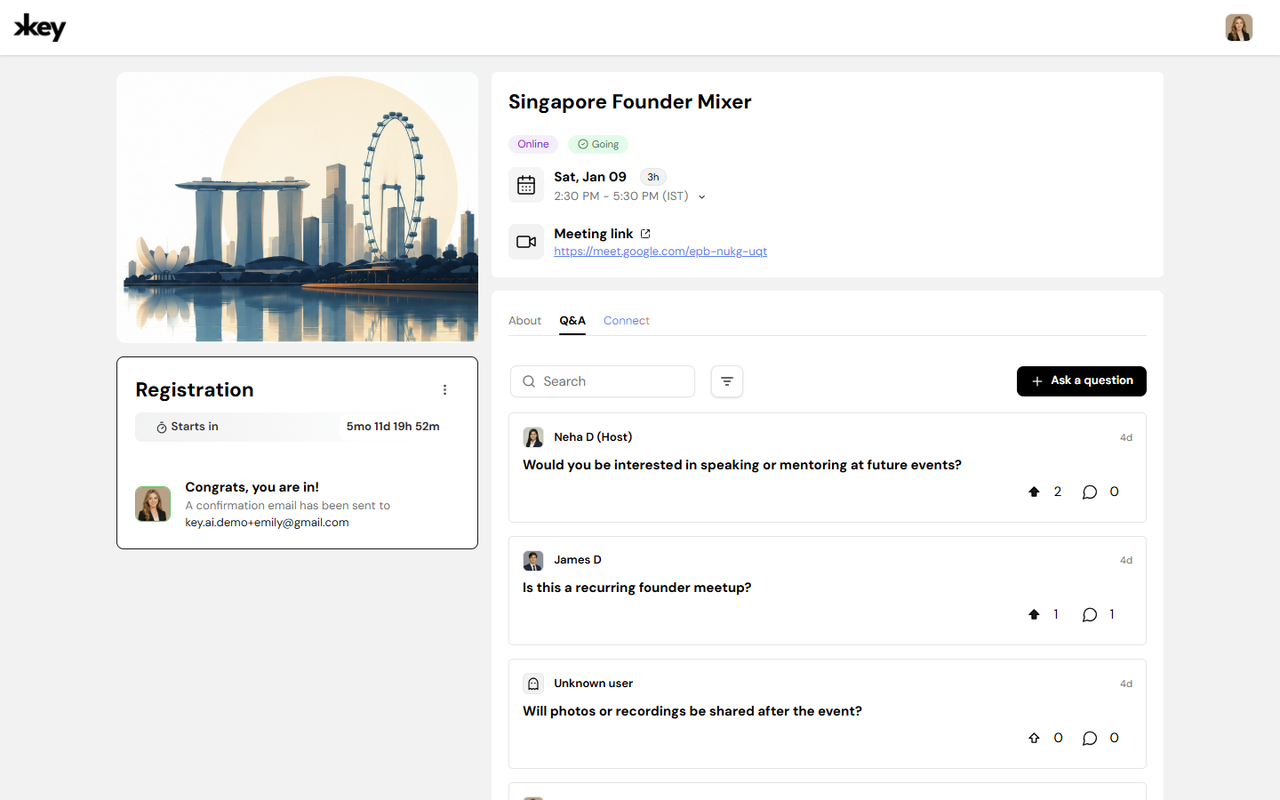
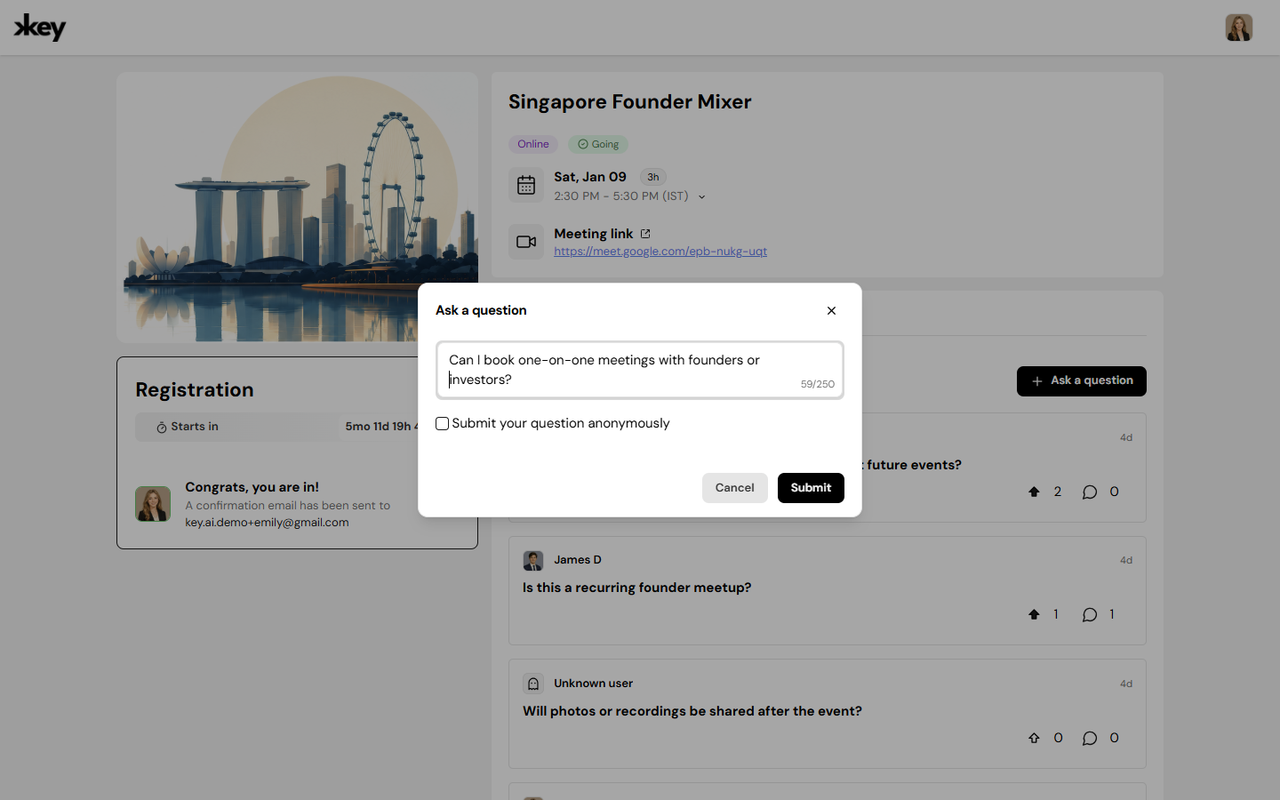
You can submit questions for speakers or event hosts during the event.
To ask a question:
- Open the event page.
- Select the Q&A tab.
- Click Ask a question.
- Enter your question.
- Submit your question.
Your question will appear in the Q&A section for other attendees and event hosts to view.
Upvote a Question
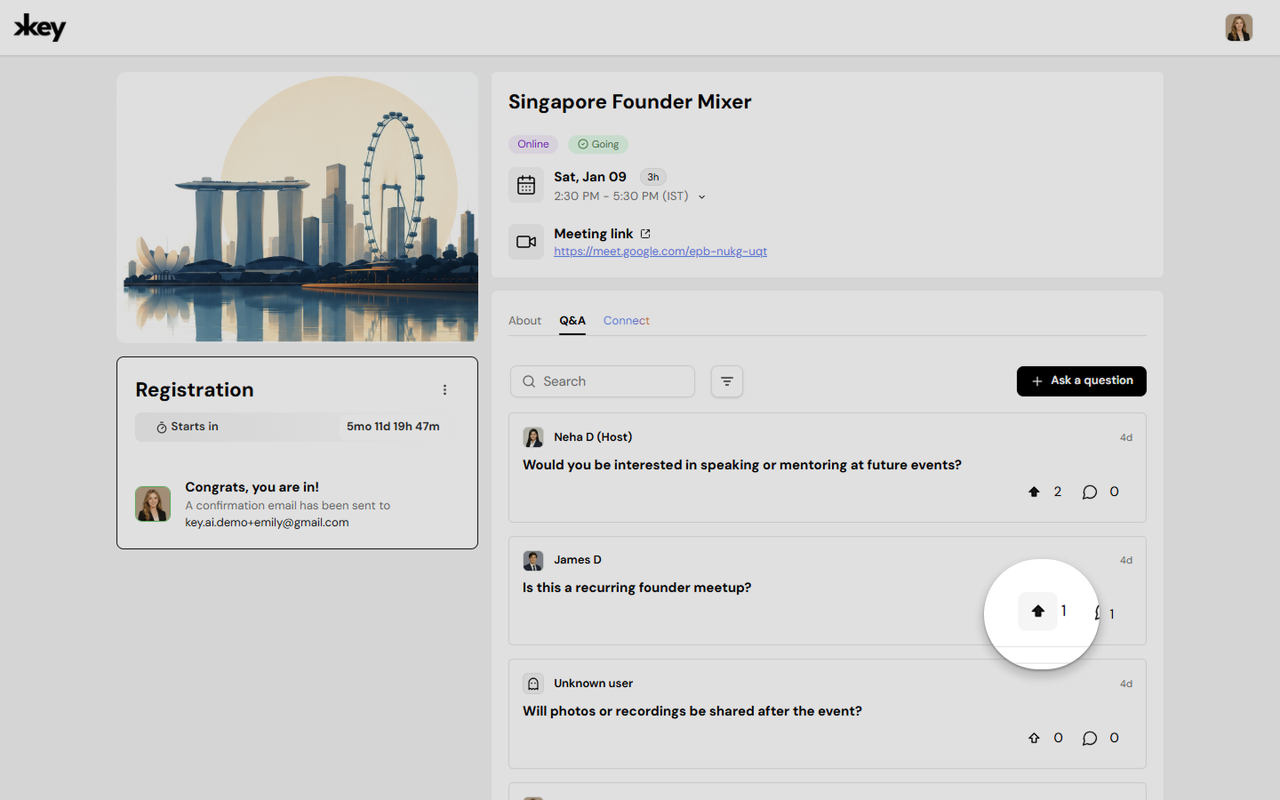
If another attendee has already asked a question you are also interested in, you can upvote it instead of submitting a duplicate question.
To upvote a question:
- Find the question you want to support.
- Click the Upvote icon.
Upvoting helps highlight questions that are important to multiple attendees. You can remove your upvote at any time by clicking the icon again.
View Questions and Answers
The Q&A section displays questions submitted by attendees. You can browse the questions and follow the discussion as event hosts or speakers respond. Questions may also display their current status, such as whether they have been answered.
Q&A During an Event
Q&A is designed to support real-time interaction during events. It gives attendees a way to participate in discussions without interrupting the speaker or live session. During an event, attendees can submit questions, support questions from other attendees through upvotes, and follow the conversation as questions are answered.
Frequently Asked Questions
Who can ask questions?
Attendees can ask questions when Q&A is enabled for the event.
Can I upvote someone else's question?
Yes. You can upvote questions submitted by other attendees to indicate that you would also like the question to be answered.
Can I remove my upvote?
Yes. You can remove your upvote by selecting the upvote option again.
Can I ask a question that someone else has already asked?
You can, but if the same question has already been submitted, upvoting the existing question is a better way to show your interest in it.
Where can I access Q&A?
Q&A is available through the Q&A tab on the event page when the feature has been enabled for the event.
Still need help?
Can't find what you're looking for? Our team is here.
Contact us