Opportunities
Discover and create intros, talent, venture, plugs, and resource opportunities.
Opportunities Overview↗
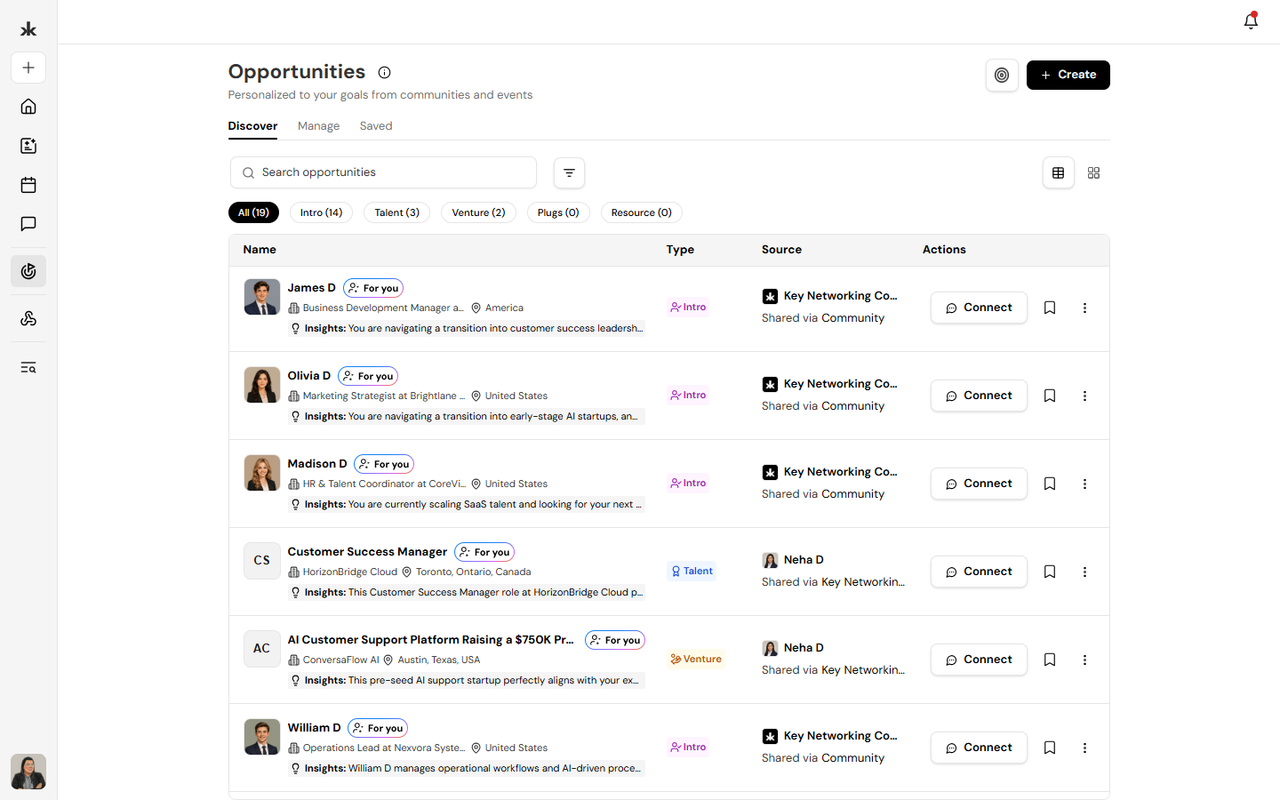
The Opportunities page brings relevant opportunities into one place and helps you connect with the right people or discover useful resources.
Access Opportunities
To access Opportunities:
- Open the Opportunities section.
- Browse opportunities recommended for you.
- Use the available tabs, search, and filters to find specific opportunities.
The Opportunities page includes:
- Discover - Browse opportunities recommended or available to you.
- Manage - View and manage opportunities you have created.
- Saved - Access opportunities you have saved for later.
Opportunity Types
Opportunities are organized into five types.
Intro
An Intro opportunity helps people connect with someone who can help them reach a specific goal. For example, someone may be looking to connect with:
- A specific person
- Someone with a particular area of expertise
- A potential customer, partner, or collaborator
- Someone who can make a valuable introduction
Example:
"I am looking to connect with customer success leaders and AI specialists who are working on AI-driven support and client retention."
Talent
A Talent opportunity is related to professional skills, expertise, hiring, or finding people for a specific role or need.
For example, someone may be:
- Hiring for a role
- Looking for a job or new opportunity
- Offering professional expertise
- Looking for someone with a specific skill set
Example:
"We are looking for an experienced backend engineer to join our team."
Venture
A Venture opportunity relates to business, startups, fundraising, investment, or other entrepreneurial activities.
For example, someone may be:
- Building a startup
- Raising funds
- Looking for investors
- Exploring a business partnership
- Looking for co-founders or venture opportunities
Example:
"We are raising funds for our startup and looking to connect with investors interested in our industry."
Plugs
A Plug opportunity helps people discover or recommend useful connections, products, services, or other opportunities.
For example, someone may ask their network for:
- A recommendation
- A trusted service provider
- A useful connection
- A product or service
- Someone who can help with a specific need
Example:
"Looking for a reliable designer who can help with a new product launch."
Resource
A Resource opportunity is used to share or discover useful information, tools, materials, or other resources.
For example, someone may share:
- A useful tool
- An article or guide
- A template
- A learning resource
- Helpful information or materials
Example:
"Sharing a resource that can help teams improve their customer support workflows."
- Opportunity Types - Opportunity type filters: Intro, Talent, Venture, Plugs, and Resource.
Personalized Opportunities
The opportunities you see are personalized based on information such as your:
- Profile
- Goals
- Communities
- Events
- Connections
- Interests and professional context
You can update your goals to change the types of opportunities that are surfaced to you.
Update Your Goals
To update your goals:
- Open Opportunities.
- Select the Goals or goal settings option.
- Select the goals that reflect what you are currently looking for or able to offer.
- Add or update any additional information about your goals.
- Save your changes.
Your updated goals help Kai surface more relevant opportunities and recommendations. For example, you may update your goals to indicate that you:
- Are hiring
- Are open to new roles
- Are fundraising
- Are investing
- Need an introduction
- Can make introductions
You can change your goals whenever your priorities change.
Discover Opportunities
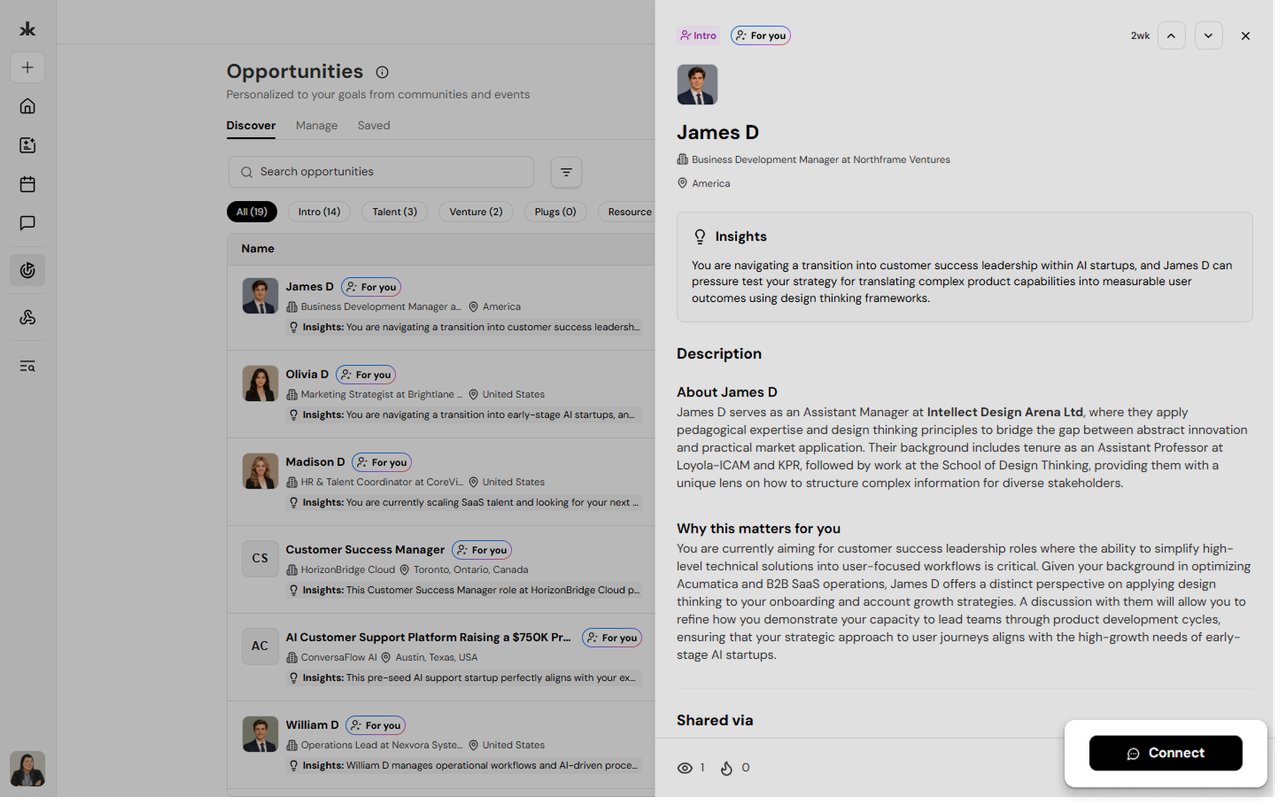
The Discover tab shows opportunities that may be relevant to you.
Each opportunity may include:
- The person's name and profile
- Their role and organization
- Location
- Opportunity type
- A description or insight explaining why the opportunity may be relevant
- The community or event where the opportunity originated
Some opportunities may be marked For you, indicating that they are personalized based on your profile and goals.
Search and Filter Opportunities
You can search for specific opportunities using the search bar.
You can also browse opportunities by type:
- All
- Intro
- Talent
- Venture
- Plugs
- Resource
This allows you to focus on the type of opportunity you are currently interested in.
Connect With an Opportunity
When you find an opportunity that interests you:
- Review the opportunity details.
- Select Connect.
- Follow the available prompts to start a conversation or connect with the relevant person.
The connection process helps you move from discovering an opportunity to taking action.
Save an Opportunity
If you find an opportunity you want to revisit later:
- Select the Save or bookmark icon on the opportunity.
- Open the Saved tab to view your saved opportunities.
This allows you to keep track of opportunities without needing to search for them again.
Create an Opportunity
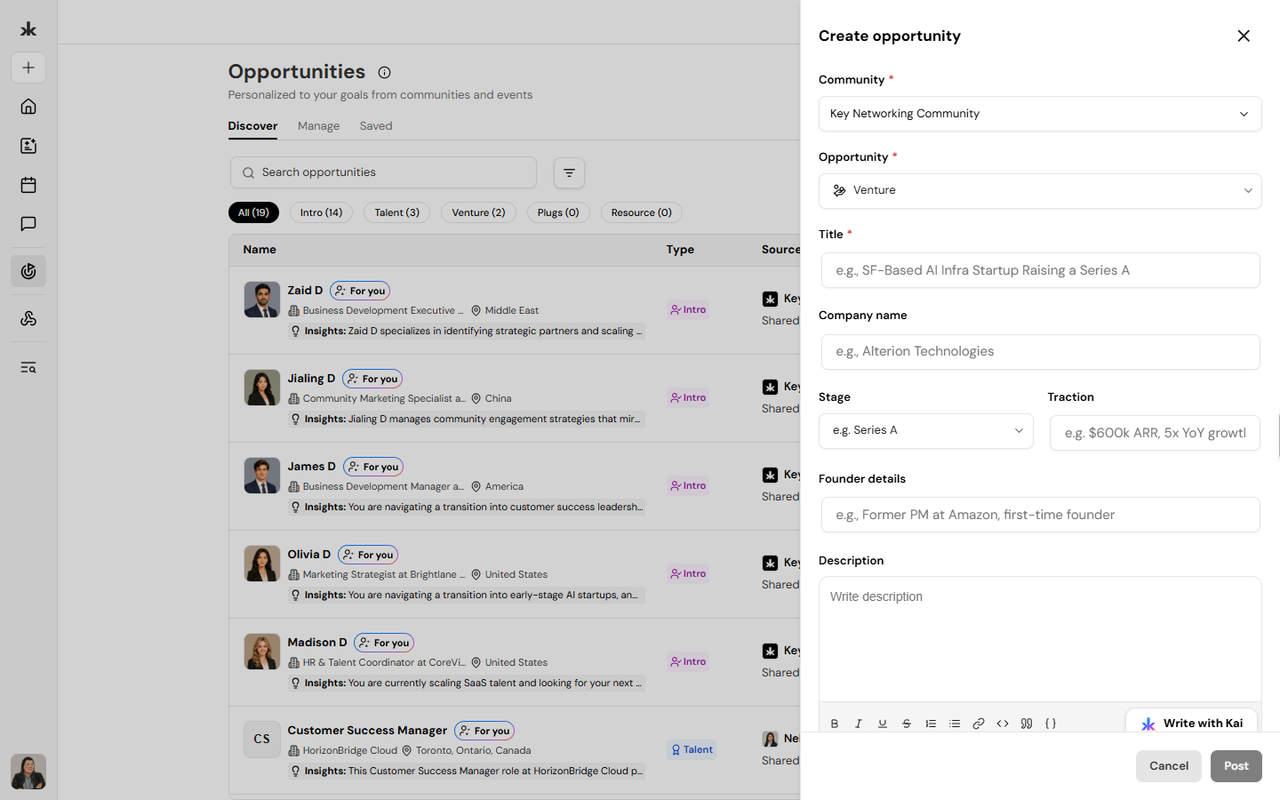
You can create an opportunity to share something you are looking for or offering.
To create an opportunity:
- Open Opportunities.
- Select Create.
- Select the appropriate opportunity type.
- Add the relevant details.
- Review the opportunity.
- Post it.
Your opportunity can then be discovered by relevant people based on the information you provide.
Opportunities From Communities and Events
Opportunities can be surfaced from activity across Key AI, including:
- Communities
- Events
- Connections and member activity
For example, an opportunity may be shared through an event or community and then become discoverable to people who may be relevant to it. The opportunity source is displayed on the Opportunities page so you can understand where it came from.
Automatically Generated Opportunities
Opportunities can also be generated automatically from connected platforms. When supported platforms such as Slack or WhatsApp are connected to a community, Key AI can identify relevant opportunity-related information from those conversations and create opportunities automatically. This allows opportunities to be surfaced from existing conversations without requiring someone to manually create each opportunity. The generated opportunity can then be reviewed and discovered through the Opportunities section.
Manage Opportunities
The Manage tab allows you to view opportunities you have created and manage them as needed. From here, you can review your opportunities and make changes.
Opportunity Sources
An opportunity may show where it originated, such as:
- Shared via Event
- Shared via Community
- Automatically generated from a connected platform
This helps provide context about how the opportunity was discovered.
Still need help?
Can't find what you're looking for? Our team is here.
Contact us